
Overview
User Roles are a great way to organize and quickly update permissions of a group of users.
User Roles are saved sets of permissions, or permission “templates,” that you can apply when creating and managing user access.
Changes made to a User Role affect every user assigned to that role. For example, if 20 users are assigned to the "Tracking Team" role and you update that role to include the “Company Dashboard” permission, all 20 users will automatically receive access to the company dashboard without requiring individual updates.
All users must be associate with a user role.
Click Here for A Guide on User Management
Creating a User Role
Option 1: From the Role Page
Users with the appropriate permissions can navigate to the Settings > Role Edit page.
Step 1: Click the "+ Add New Role" button and fill out the Role Details Tab
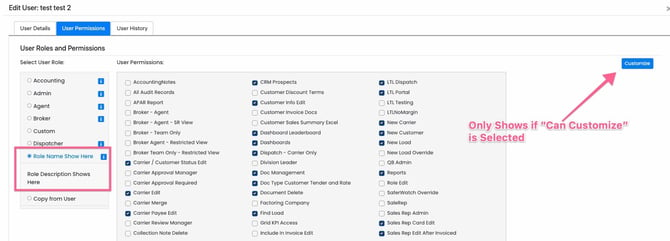
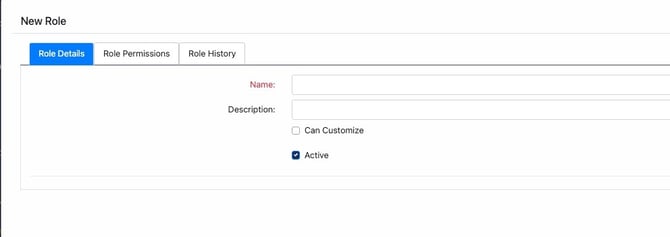 The Description is the text that will display when the information button is selected when setting a users role.
The “Can Customize” option controls whether you can further adjust a role’s permissions when configuring an individual user. If “Can Customize” is not enabled, you will not be able to modify that role’s permission set when assigning it to a user.
To remove a User Role deselect the "Active" checkbox. Please note, you can not deactivate a Role that is currently assigned to a user. You must first move all tagged users to a different role before deactivating.
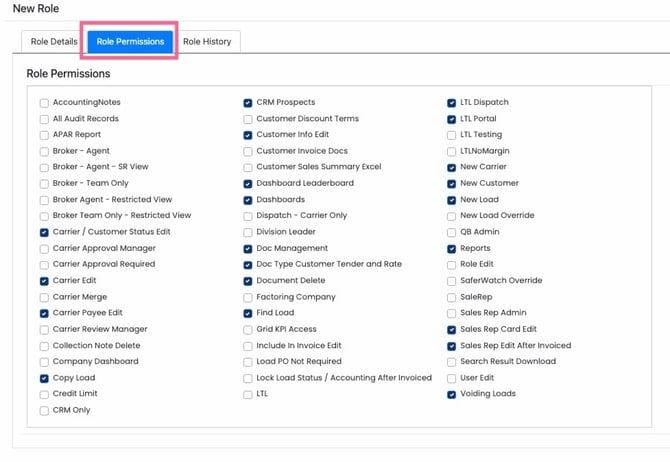
Step 2:
Navigate to the second Tab, Select your permission set and click Save
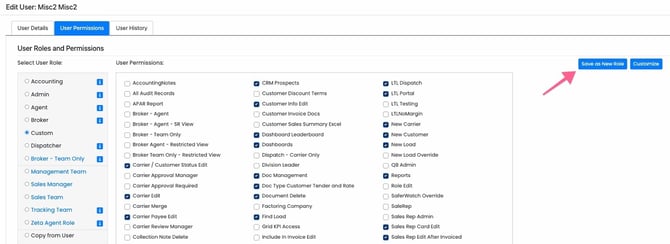
Option 2: When customizing a User
From the User Management page, when you customize an existing role, you can choose to save those changes as a new Role for future use.
Adjusting a User Role
From the Role page you can select the Role name to make edits.
Changes made to a User Role affect every user assigned to that role. For example, if 20 users are assigned to the "Tracking Team" role and you update that role to include the “Company Dashboard” permission, all 20 users will automatically receive access to the company dashboard without requiring individual updates.
Removing a User Role
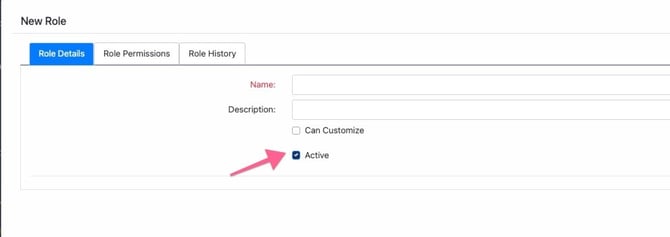
To remove a User Role deselect the "Active" checkbox. Please note, you can not deactivate a Role that is currently assigned to a user. You must first move all tagged users to a different role before deactivating.
Understanding the "Custom" Role
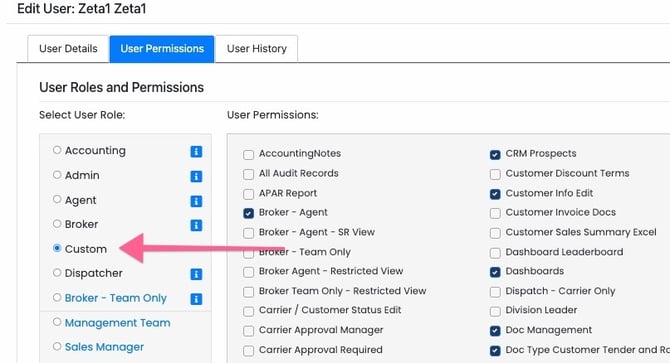
Whenever the "Customize" option is selected while assigning a user to a role—whether it is a system default role or a custom role—that user is automatically removed from the original role and moved into a catch‑all role called “Custom.”.
As the name suggests, the "Custom" role indicates that a user has a unique permission set that does not match any saved role. It is possible for three users to all be in the Custom role and each have a different, unique set of permissions.
Understanding the Legacy Role
Note: This permission is only applicable to users existing prior to the release of the user management page.
Upon release of the User Management feature, all existing users will retain their exact same access level and be moved into a "Legacy" role. The permissions listed in this role represent the level of access the user had prior to the update.
You may either move the user to a different Role or save the users Legacy set of permissions as a new role to utilize going forward.
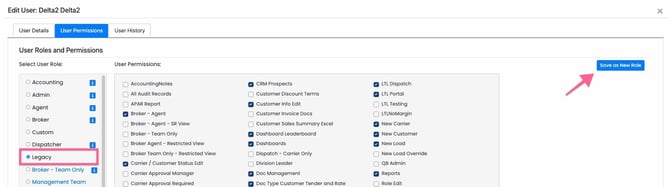
Note: The "Legacy" role is intended to be a temporary holding role. Once a user is removed from the "Legacy" role it disappears and the user can not be reset to their "Legacy" role. A new user can not be built into a "Legacy" role.