Video Overview
Adding a New User
Note: The majority of users will need a Sales Rep profile associated with their User Profile. We advise first creating a Sales Rep profile before creating the new user.
Click Here for Guide on Creating a Sales Rep Profile
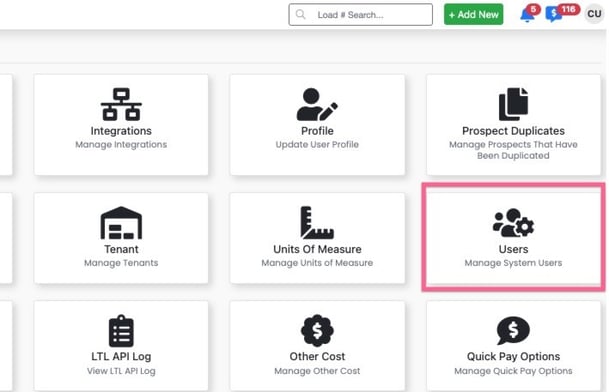
Users with the appropriate permissions can navigate to the Settings > User page.
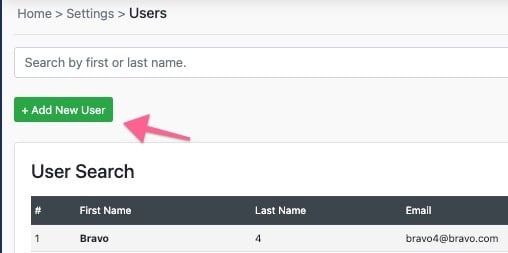
Step 1: Select "+ Add New User"
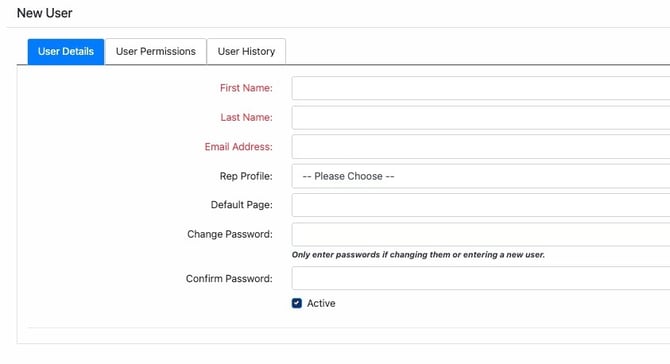
Step 2: Enter User Details and select the applicable Sales Rep profile to associate with the user
Step 3: Select a Role and Confirm User Permissions
Click Here for Full Guide on User Roles
Click Here for Breakdown of Individual User Permissions
Note: You have the option to further customize a user permissions from the selected role. You may also copy a current users permission set and role to your new user.
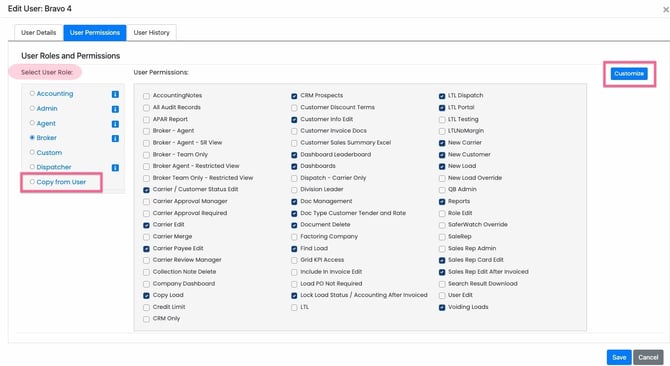
Step 4: Select Save
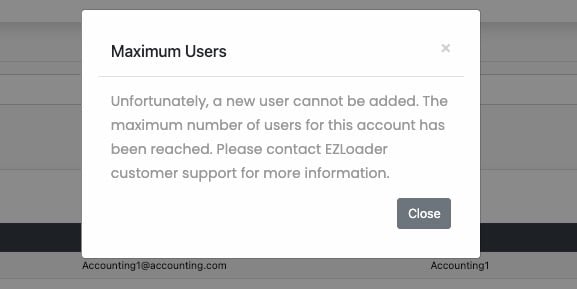
Note: If you receive the following message when adding a user please contact support@ezloadertms.com to increase you maximum user count.
Adjusting a users Role and Permissions
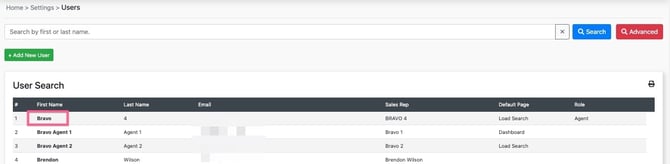
From the user management page, select the users first name to open up the details and permissions edit modal.
Deactivating a user
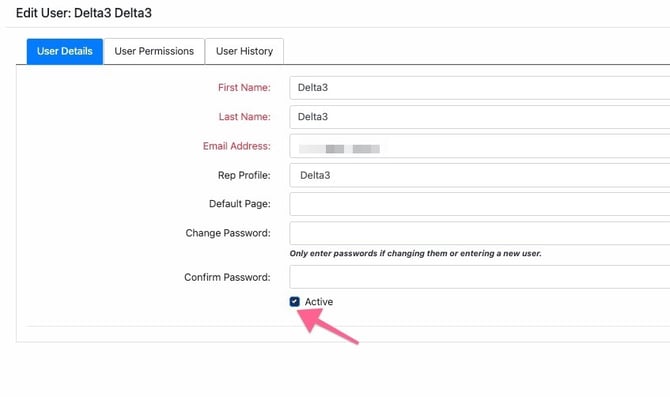
Select the first name of the user you would like to remove and deselect the Active checkbox