
Uploading your Company Documents (Admin Users only)
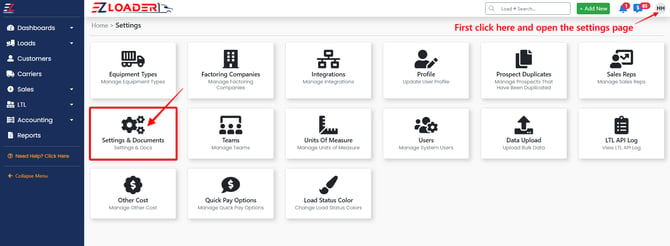
1. Click your initials at the top right > click Settings
2. Click Settings & Documents
Company Documents
Scroll Down past the Company Information & Defaults section to find the Company Documents section.
1. To upload a new document, click the gray [Browse] button and select the file you want to add.
2. To view an attached document, click the pop-out link located beneath the document you want to view.
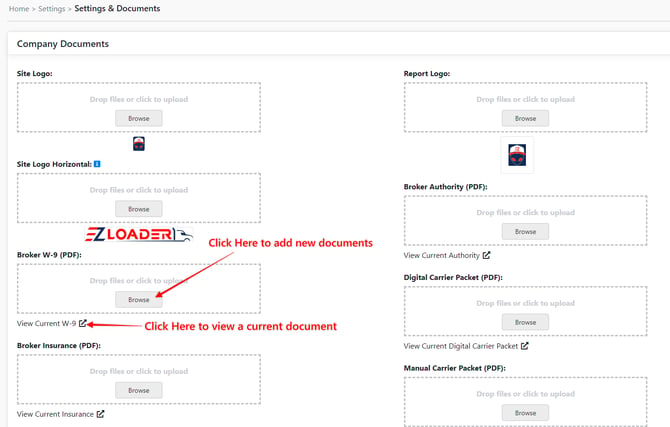
Site Logo: Use Site Horizontal Logo for this
Report Logo: Appears on different reports/documents such as rate confirmations (Note: file type must be .PNG)
Site Horizontal Logo: Appears at the top of the side bar throughout the company profile (Note: Aspect ratio 1:8 and file type must be .PNG)
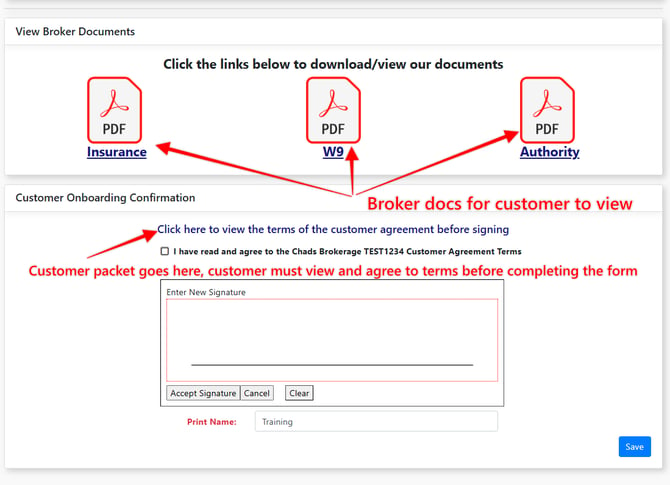
Broker Authority (PDF): Appears as a link within a digital customer onboarding webform for your customer to view
Broker W-9 (PDF): Appears as a link within a digital customer onboarding webform for your customer to view
Digital Carrier Packet (PDF): Appears as a link within a digital carrier onboarding webform. Your carrier will be required to view your carrier packet before completing their onboarding form. (Click Here for Video Guide on Digital Carrier Onboarding)
Broker Insurance (PDF): Appears as a link within a digital customer onboarding webform for your customer to view
Manual Carrier Packet (PDF): This is the PDF a carrier will receive if you choose to send the manual carrier packet vs the digital carrier onboarding webform.
Customer Packet (PDF): Appears as a link within a digital customer onboarding webform. Your customer will be required to view your customer packet before completing their onboarding form.
Below is a screenshot from the digital customer onboarding webform)
Reviewing Company Settings
The **Company Information & Defaults** section lets you update your company details, which will automatically be reflected across your entire EZ TMS account.
Click the edit button to edit any of the information.
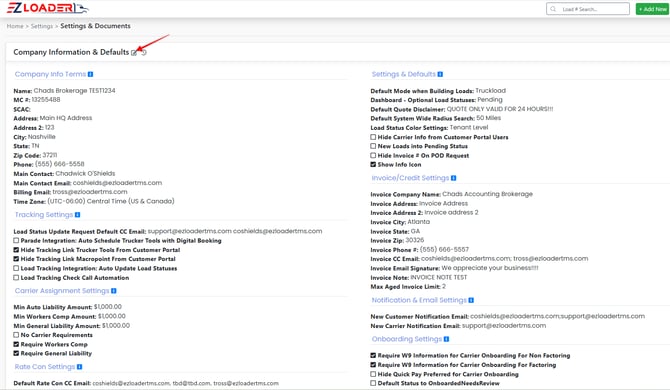
The Company Information & Defaults is broken out into sections. Explore these sections and utilize the blue information [ i ] buttons to learn what each section controls and offers.