
Summary
Once a load is delivered and a delivery document is uploaded to the load profile, EZ Loaders audit logic will kick in to determine if the load needs to go to the audit page for review due to missing requirements or if it is ready for the invoicing page.
Logic Overview:
-
Does this specific customer require all loads to go to the invoice audit page?
- Yes - Change load status to "Invoice Audit" and display on audit page.
- No - Does this load meet all the invoicing requirements set for this customer?
- Yes - Change load status to "Received" and display on invoicing page.
- No - Change load status to "Invoice Audit" and display on audit page.
Customer Invoice Settings and Requirements
To set a customers invoicing requirements, navigate to the customer profile > accounting section > invoice settings and requirements card.
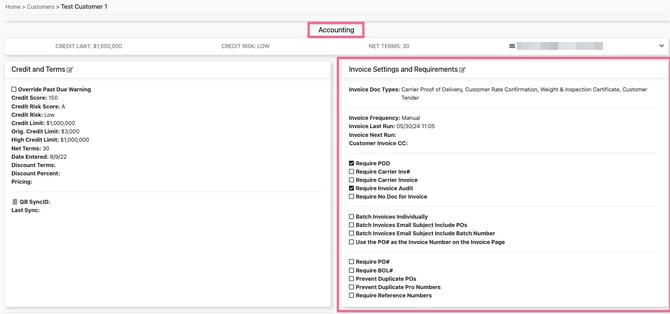
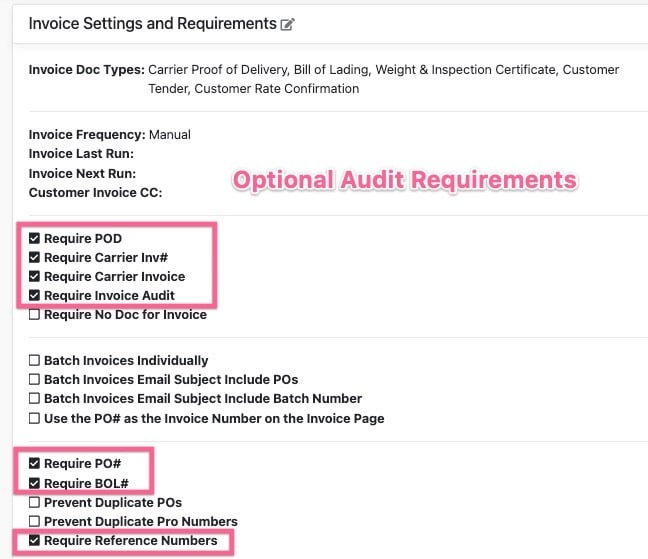
Click Here for Full Article on Customer Invoice Settings and Requirements
Audit Page Categories
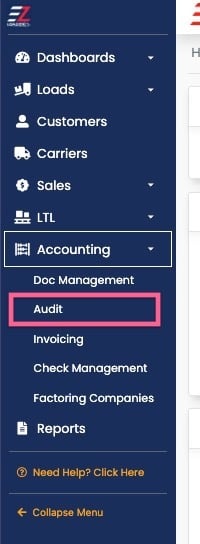
Once a load moves into the "Invoice Audit" status it will appear on the Invoice Audit page located in the accounting menu within the navigation sidebar.
The Audit logic will automatically review the customers invoicing requirements and display the load into one of five categories:
1. Loads with Invoice Issues
- Loads will fall into this category if:
- A carrier has submitted through the POD/Invoice request form additional costs or an invoice amount that is different than the saved carrier rate.
- Click Here for Article on the POD/Invoice request form
- An uploaded invoicing document is a corrupted file.
- A carrier has submitted through the POD/Invoice request form additional costs or an invoice amount that is different than the saved carrier rate.
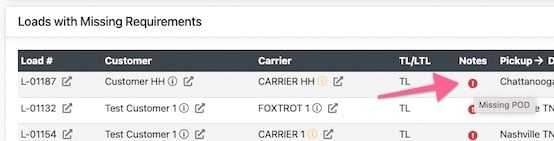
2. Loads with Missing Requirements
- A load will fall into this category if:
- Any of the invoicing requirements set at the customer level are missing.
- You can hover over the notes icon to view which requirements are missing
- Any of the invoicing requirements set at the customer level are missing.
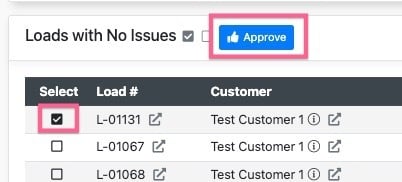
3. Loads with No Issues
- A load will fall into this category if:
- A load has no issues and meets all customer-level requirements. From here you can approve the load to move it to the invoicing page.
4. Invoice Loads - Carrier Audit Only
- A load will fall into this category if:
- A load has already been invoiced but later a carrier completes the Invoice/POD request form and submits additional costs or an invoice amount different than the saved carrier rate.
5. Multi Carrier Master Loads
Note: This section only applies if you have the multi carrier feature activated and are building multi carrier loads.
- A load will fall into this category when:
- All legs of a multi carrier load have been approved the parent load record will appear for final review and approval.