Operational Statuses
These statuses track the lifecycle of a load from initial creation through final delivery. The statuses outlined below include a generic description but each brokerage may use each status differently.
- Pending - The load is pending the confirmation of details related to the load before booking a Carrier (Ex: pick-up and/or drop-off appointments)
- Available - Load is built but does not have a carrier assigned
- Loadboard - Load is built, no carrier assigned, and load has been posted through a loadboard integration.
- Committed - The load has been rewarded to you by the customer and is committed to a carrier, but the carrier is not ready to be assigned.
- Assigned - A load that has a carrier assigned.
- Appointment - This status informs you that there is a carrier assigned to the load and an appointment has been made for pickup.
- Missed Pickup - The driver missed the designated pickup appointment time.
- Dispatched - The driver is enroute to the pickup location.
- On Site - Pickup - Driver has arrived at pickup location and is ready and waiting to load.
- Picked-up - Freight has been loaded onto the truck but has not yet begun transit.
- Enroute - The driver has left the pickup location and is enroute to the next stop or destination.
- On Site - Delivery - The load has arrived at the delivery location and is waiting to be unloaded
- Delivered - The load has been delivered, driver has received POD and left the delivery location
Accounting Statuses
Once a load passes Delivered status, it moves into the accounting phase of its lifecycle. It is important for any users who are involved in pushing a load through the accounting process to recognize the following load statuses.
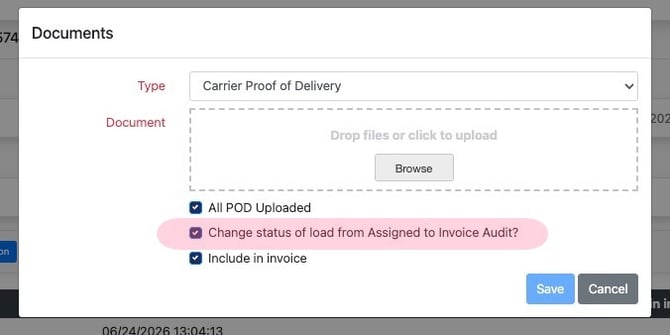
- Invoice Audit - In most scenarios this is an automated status that occurs if either a POD or Carrier Invoice document is added to a load profile. This can happen in a number of ways:
- A carrier has completed the POD/Invoice Request Form that is sent when a load is delivered. TL ONLY
- Documents (POD or Carrier Invoice) have been added to a load via Document Management or Uploading documents into a load page. TL & LTL Loads
- NOTE Invoice Audit status can be bypassed using specific settings
- Leg Approved - (Applies only to Multi Carrier Load Types) This status occurs after approving the Carrier Rate within a Multi-Carrier Leg Load via the Audit page.
- TONU - This signals to the accounting users that a Truck Order Not Used needs to be paid.
- NOTE This status will bypass all other load statuses AND invoice audit status
- Received - This status indicates the load is ready to be invoiced and is waiting for a user to send the invoice from the Invoicing Page. Loads in received status will show up in the Customer Invoices Manual section of the Invoicing Page.
- Invoice Pending - This is an automated status that occurs after the load has been approved through the invoice audit feature only if the customer is set up on an invoice frequency other than manual. When a customer is set up for scheduled invoicing these loads will show in the Customer Invoices Pending section of the Invoicing Page and require no further action to invoice. The invoices will be generated and sent based on the predetermined customer invoicing schedule.
- Invoiced - This status indicates that a load has been invoiced, but you have not yet received payment from the customer or paid the carrier.
- Carrier Paid - This status shows confirms that a carrier invoice has been paid, but you have yet to receive payment from the customer.
- Customer Paid - This status confirms that a customer has paid the invoice, but you have not yet paid the carrier.
- Completed - This load has been finalized and completed. Customer Payment has been received and Carrier has been paid. Completed status is the final status of a load.
- Operations Hold - This status is used temporarily to indicate an Operational issue with the Load and processing of the load is temporarily paused.
- Accounting Hold - This status is used temporarily to indicate an Accounting issue with the Load and processing of the load is temporarily paused.
- Claims Filed - This means that this load is in the middle of the claims process.
- Customer Cancelled - This status is used to indicate the load was temporarily cancelled by the Customer and processing of the load is temporarily paused.
- Voided - This load was not used or cancelled.
How Can You Change the Status of a Load?
IMPORTANT! - Statuses can several different ways
- Manually changing the status in the Load Page > Details > Status section
- Checking off certain items in the "Check Call" section of a load will automatically progress the load through statuses.
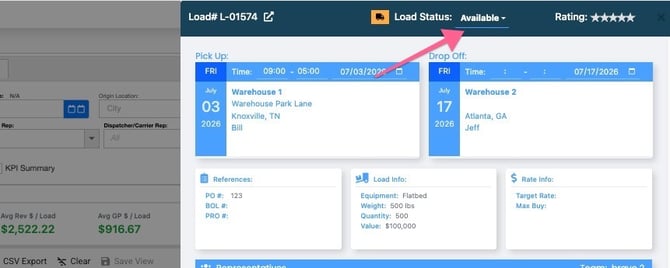
- Loads List / My Loads+Pipeline Sidebar
- Statuses will update automatically when certain actions are performed or documents are added.
- Bulk Status change from Load Search or Load Grid
- Statuses will change when certain tracking features or integrations are used.
Below are step-by-step guides for each of the four ways you can update a load’s status.
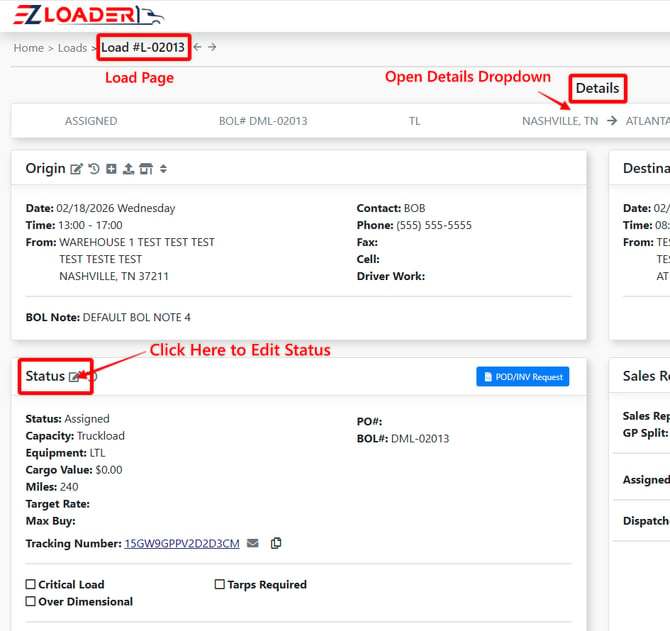
1. Load Page > Details > Status Card
The traditional way to change a load status is via the load page under the "status" card, which is located under the details section
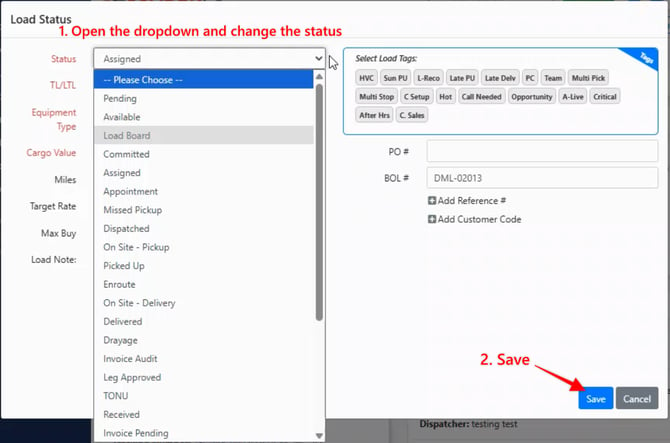
Select the "edit" button on the status card to update the load status
2. Load Page > Check Calls
The Check Calls section of a load profile is another great way to record and move a load through its life cycle.
Certain check calls will change the status of a load automatically. One example of this is when you click the “enroute” check call, the status changes to ENROUTE. Un-Loaded will change the status to DELIVERED. These check calls also allow users to mark current location, ETA, check call date/time, and any applicable notes.
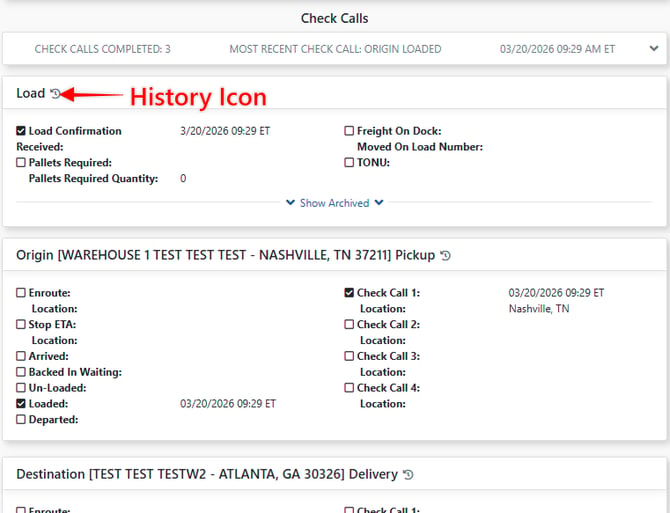
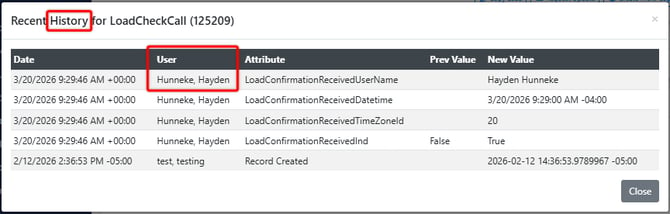
Selecting a checkbox in the check call section will timestamp and log which user made the update. This history can be viewed by selecting the "history" icon.
3. Load List / Grid+Pipeline Sidebar
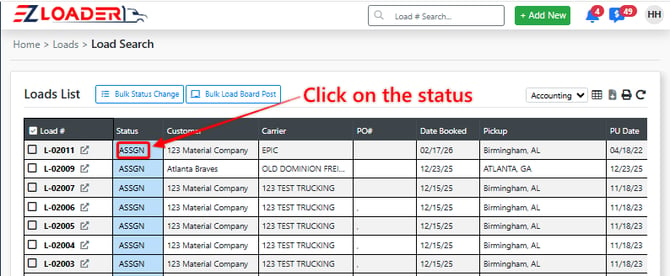
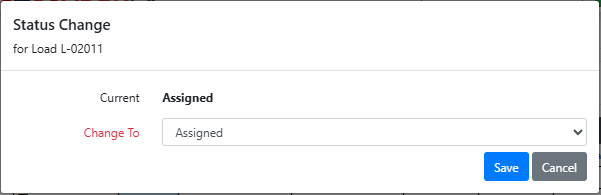
In a loads list (found by selecting either "my loads" or "load search" from the left tool bar) you can quickly update the status of a load by simply clicking on the current status field and selecting the new status from the drop down.
4. Certain Document Uploads
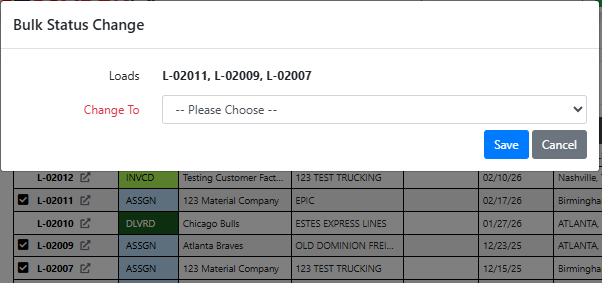
5. Bulk Update Status
In the Load List you can update multiple loads to a certain status at one time:
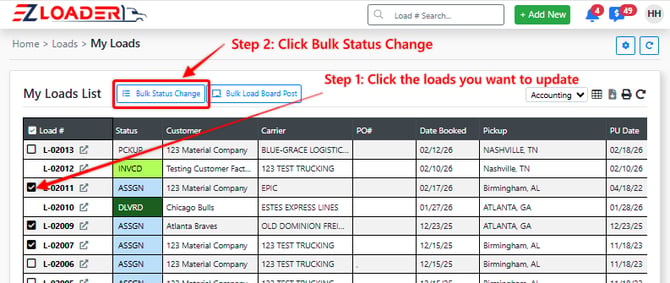
Select the status you would like to bulk update