
Navigate to the left Side Bar > Click on the Carrier or Customer tab to open the "Search" Page
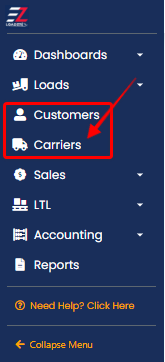
Once you have the "Search" page open, you can search different criteria to find the Customer or Carrier Profile that you are looking for.
Customer Search
The easiest way to search for a Customer is to put their name in the top quick search bar on the customer search page:
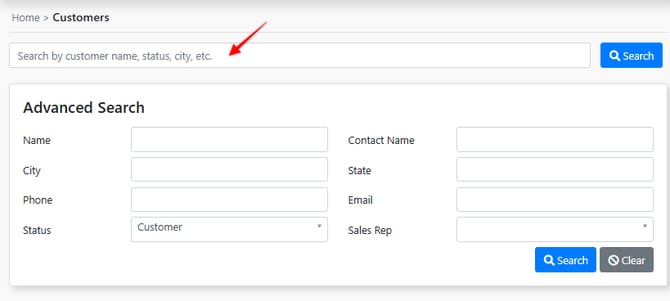
***NOTE - This only returns results for customer profiles that are in "Customer" status.
Advanced Search
The advanced search box allows you to refine your customer search based on a number of different criteria.
***NOTE - Selecting the blue search button in the Advance Search box (When no search criteria is entered into any of the advanced search fields) will return your entire list of customers.
(To pull Customers in all statuses you must select "All Statuses" from the status dropdown)
Pro Tip - Select your name in the "Sales Rep" section and hit search to get a list of only your customers
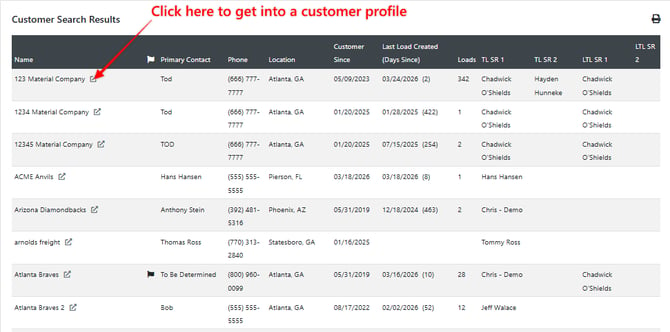
Customer Search Results
The customer list is the results of a customer search. This list gives you several quick view columns shown below. Click on the Pop-Out box beside the customer name to go into the customer profile.
Carrier Search
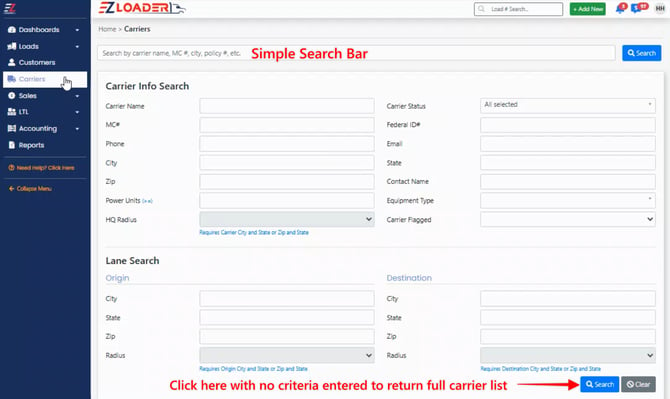
The horizontal bar at the top, or Simple Search Bar contains it's own Search button to the right. You can search for a carrier based on name, MC#, DOT#, city, insurance policy #, etc.
The Advanced Search section resides below the Simple Search bar. This section can be used to filter down your search results based on additional parameters. When no criteria is entered into the advanced search window, your entire carrier list (regardless of Status) will be returned as search results.
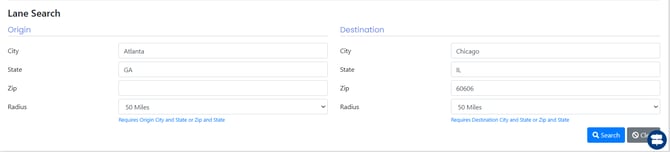
You can also use Advanced Search to find carriers within a selected radius of previously covered lanes by entering lane and radius information in the Lane Search feature.
Carrier Search Results
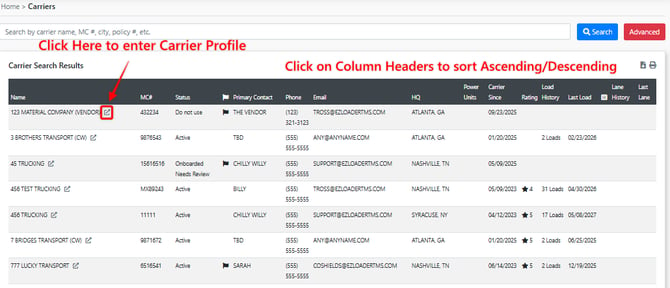
***NOTE - Search results can be sorted in ascending and descending order by clicking on the column headers Name, Status Primary Contact, Phone, etc.