
Onboarding Carriers
You first need to determine if you have an open invitation model or a closed invitation model. Your invitation model will dictate how you need to trigger onboarding.
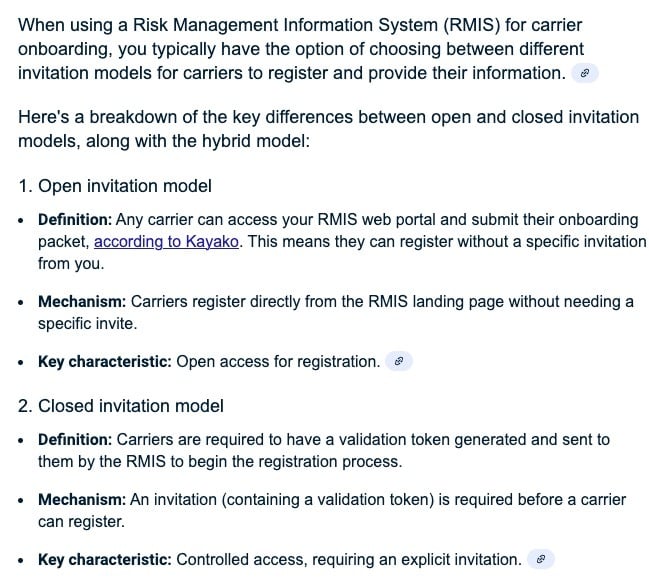
Open Invitation Model
With an open invitation model, you can initiate the onboarding process either directly within EZ Loader or through your RMIS account. In both cases, an onboarding invitation will be delivered to the recipient.
After the carrier completes onboarding, RMIS will process the submitted data and transmit it to EZ Loader. Upon receipt, the carrier profile will be automatically created in the system. Refer to the data points section below for specifics on which information is synchronized.
Note: Once RMIS makes the data available to EZ Loader, it generally takes 3-6 minutes to process.
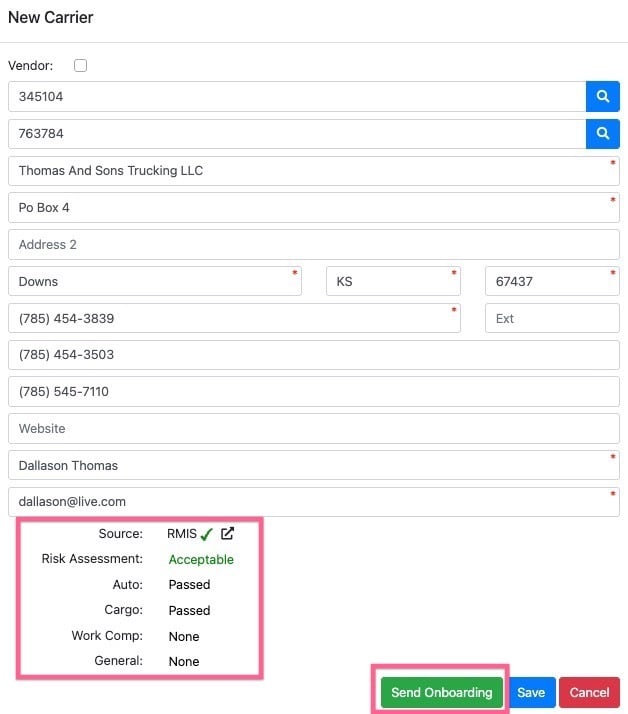
To start the Onboarding process for a carrier via RMIS within EZ Loader, select the “+ New Carrier” option at the top of the page, enter the MC number, and click “Send Onboarding.”
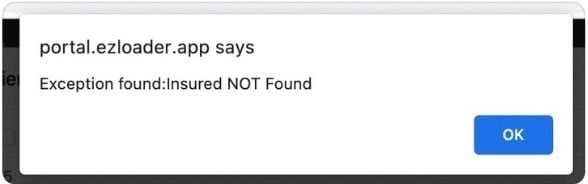
If the carrier is not available in the RMIS database you will receive an error message.
Closed Invitation Model
If you are utilizing a Closed Invitation Setup, you will need to initiate onboarding directly from within the RMIS platform as opposed to EZ Loader.
After the carrier completes onboarding, RMIS will process the submitted data and transmit it to EZ Loader. Upon receipt, the carrier profile will be automatically created in the system. Refer to the data points section below for specifics on which information is synchronized.
Note: Once RMIS makes the data available to EZ Loader, it generally takes 3-6 minutes to process.
Data Points
When an onboarding record is received, the following data points are populated in the carrier profile. These fields will also be automatically updated if RMIS transmits updated values in the future.
- Carrier Info
- Carrier Name
- Physical Address
- Primary Contact
- MC#
- DOT#
- EIN#
- Insurance
- Liability
- Cargo
- Workers Compensation
- Documents
- COI
- Carrier Agreement
- W9
- Contacts
- Payee Information
- Please note: If you have attached a Factoring Company address book record in EZ Loader as the Payee information OR you have the 3rd Party Payee Lock setting activated, the Payee information will not automatically update if RMIS sends new Payee information.
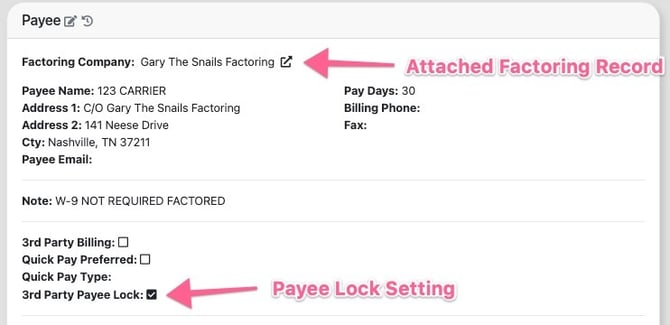
- Please note: If you have attached a Factoring Company address book record in EZ Loader as the Payee information OR you have the 3rd Party Payee Lock setting activated, the Payee information will not automatically update if RMIS sends new Payee information.
Manual Syncing and Quick Access to RMIS Profile
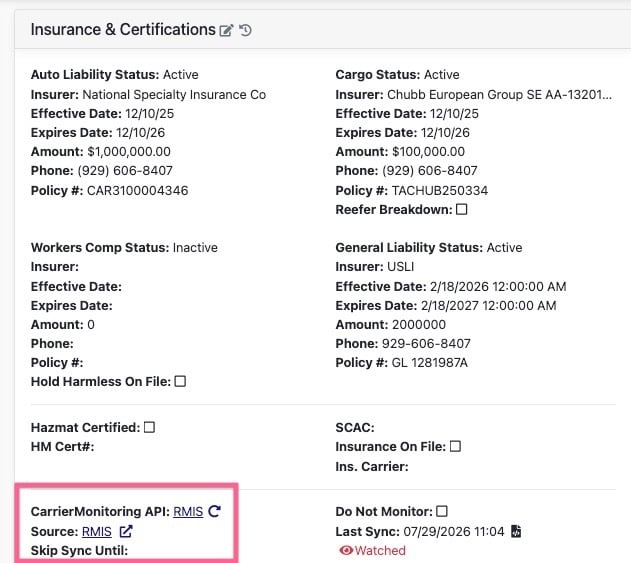
EZ Loader automatically monitors for updates sent from RMIS. Additionally, you can manually refresh carrier data by selecting the refresh option within the insurance card on the carrier profile. A quick link to access the carrier profile directly in RMIS is also available.
Overriding a RMIS Assessment
In certain situations, it may be necessary to override a RMIS assessment for a carrier. It is important to approach this process with caution.
Users who possess Admin or Override permissions can enable the "Do not Monitor" checkbox located within the insurance section of the carrier profile. By selecting this option, the system will cease to automatically update the carrier's information from RMIS. This functionality allows the user to manually modify the carrier's status or risk assessment values as needed.

Note: If you remove the "Do not Monitor" checkbox you need to select the manual refresh icon to pull in the latest information.