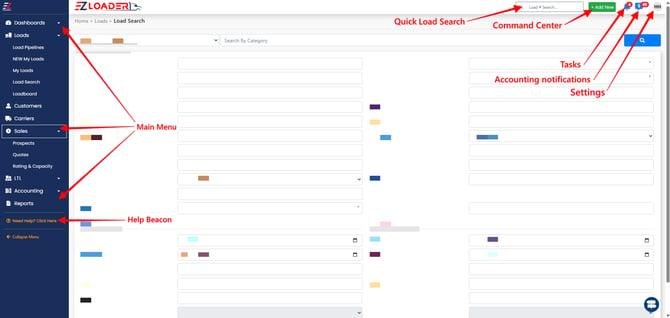
Main Menu : The main menu on the left of your screen is your main hub for navigation within EZ TMS. This will take you between different loads, profiles, and features of the system.
Quick Load Search : This quick access icon at the top of your screen will let you input a load number and jump directly into that load profile from any screen.
Command Center : The the main Input Area of EZ TMS. This is how you add anything into the system.
- New Load - Opens the New Load Wizard so you can build a load.
- New Prospect - Opens the form to build a new prospect.
- New Customer - Opens the form to build new Customer.
- New Carrier - Jump starts the carrier onboarding process.
- New Task - Allows you to add a task and attach it to anything.
- New Note - Allows you to add any type of note and attach it to a profile or load.
- New Phone Note - Log a call and attach it to a Prospect, Customer, or Carrier profile.
- New Quote - Opens the form to build a new quote.
Tasks : Notifications here show you how many tasks you have that are overdue. Clicking this will take you to the task page.
Accounting notifications : Notifications here show you if there are documents to be processed or invoices audits to approve.
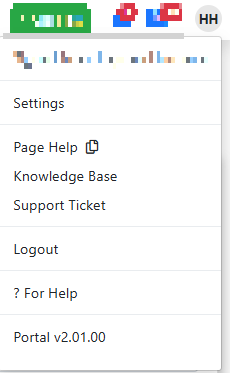
Settings Menu : This button opens the Settings menu, where you can manage your settings, access the Knowledge Base, submit support tickets, and log out of your account.