Visit portal.ezloader.app to access the Login page directly and save to your Favorites within your web browser for quick access.
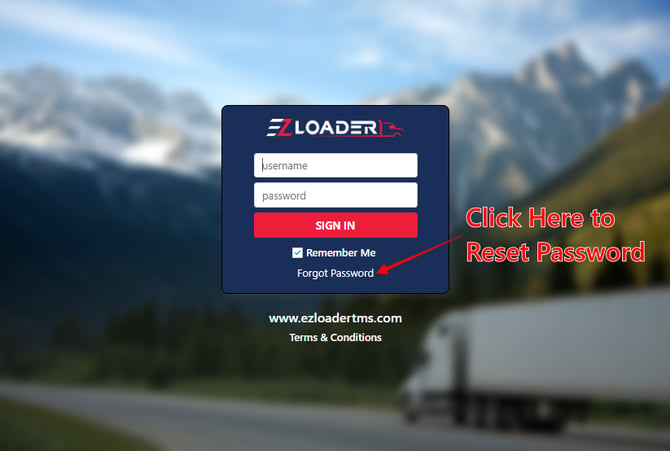
Log in using the Username & Password you were sent in your Welcome email, or click on the "Forgot Password" prompt to reset your system generated password and make it your own.
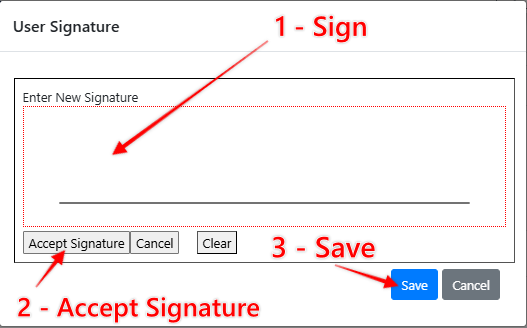
Setting up your E-Signature
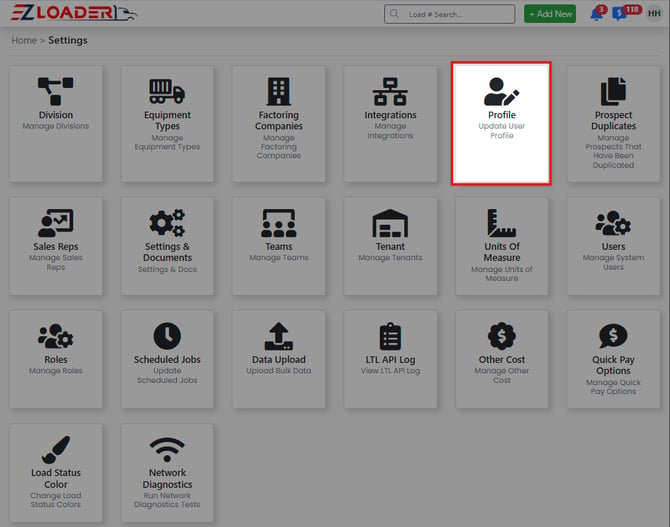
To send Rate Confirmations, Carrier Onboarding, or any other e-mail out of EZ TMS, you must first set up your Digital Signature. This can be found in your User Profile within the Settings Page.
Customizing your Load List
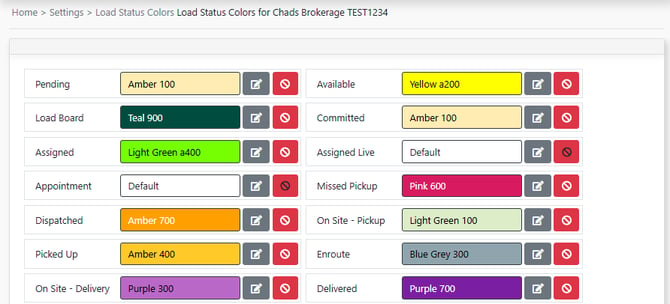
In EZ TMS, you have the ability to customize the colors of your loads in your loads list based on the Load status.
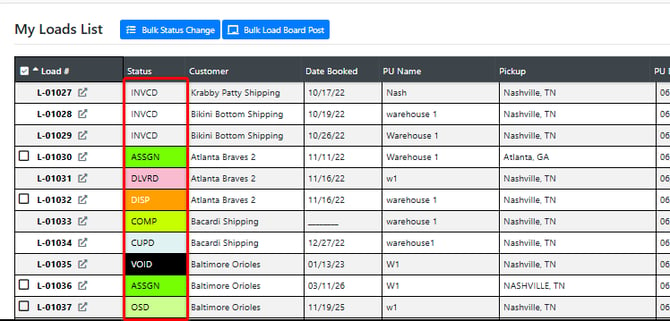
If you're an Admin User, you can Customize your status card colors globally within your account.
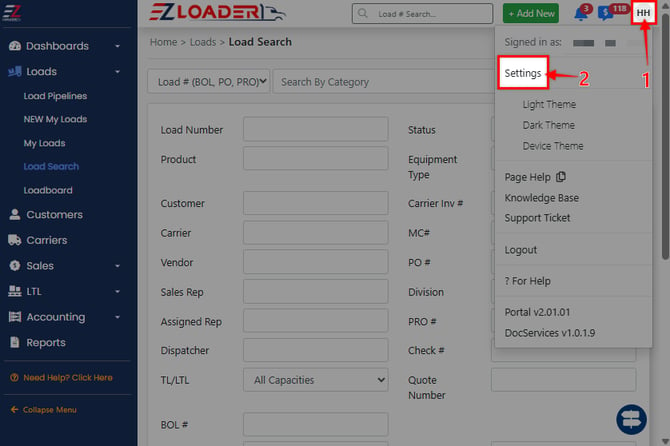
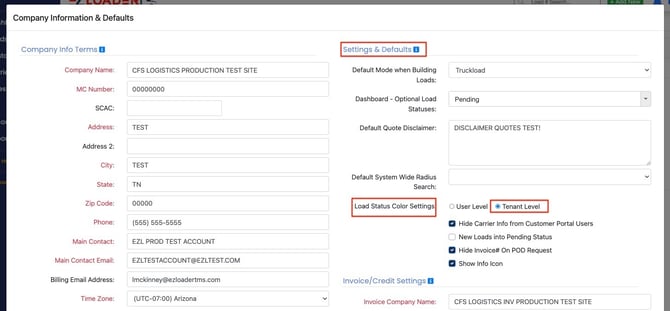
***To enable the setting to change Load Status colors globally, click on your initials at the top right of your account > click Settings > Click Settings & Documents > click the Edit button in the Company Information & Defaults section > find the Settings & Defaults section > Load Status Color Settings > click Tenant Level. avigate to the Load Status Color card in the Settings page.
Any Admin User can change the Load Status colors within the Settings page > Load Status Color section.
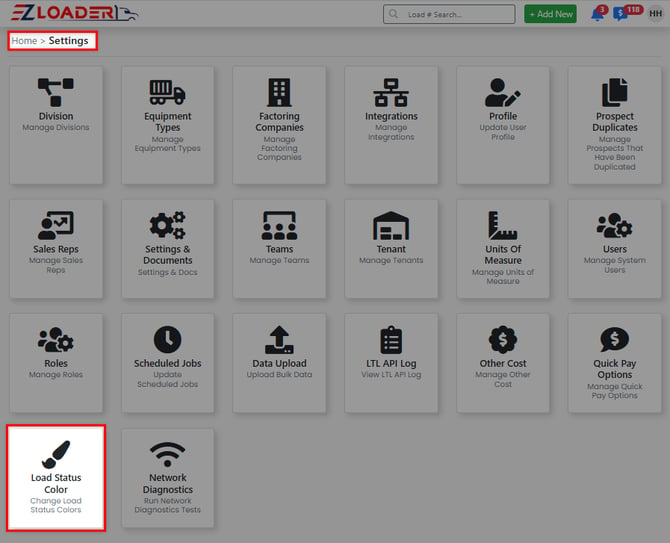
Choose a Unique color for each desired status to quickly identify Loads based on color.