
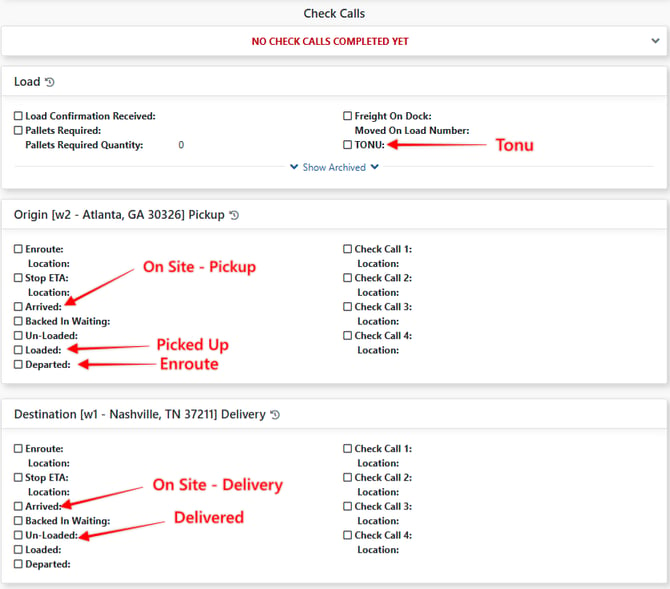
In the Check Calls section of a load, when you select a Check Call, EZ TMS will prompt you to automatically change the STATUS of a Load to the Load status listed in Red below:
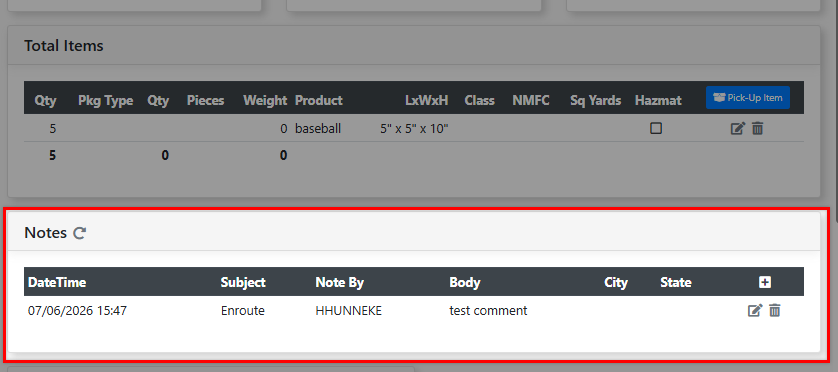
If you need to create a note or problem note that goes along with a Check Call, enter the note when marking your Check Call and the note will appear in the Notes under the Details section of the load (The subject of the note will reflect the Check Call Description).
Certain check calls will also change the status of a load automatically. One example of this is when you click the “enroute” check call, the status changes to ENROUTE. Un-Loaded will change the status to DELIVERED.