Here you will find a step-by-step guide on initiating a MacroPoint tracking cycle within a Load profile.
Please ensure that your MacroPoint integration is already set up in your EZ Loader account before proceeding with this tutorial. If you haven't activated your MacroPoint integration yet, please click HERE for detailed instructions.
How to Send a Tracking Request:
Step 1 – Go to Load Page and Click “Shipment Tracking” at the bottom of the page.
Step 2 – Click “Start New MacroPoint Tracking”
Step 3 – Input the relevant phone number and email address where you would like to receive tracking updates. Additionally, choose the start and end dates and times for your tracking schedule. Once you have completed this information, click "Save" to dispatch the tracking request via text message to the provided phone number.

Step 4 - After a driver accepts the tracking request and starts tracking through their MacroPoint mobile app, the load profile will update to show a list of ping details. You will also find a link that takes you to the MacroPoint web portal, where you can access further tracking information and view maps. Note: The most recent ping must be at least 5 miles further than the prior ping to be recorded in the event list.

How to utilize ELD Tracking
Every 24 hours, EZ Loader compiles and transmits a list of carriers and their associated information to MacroPoint. To ensure a carrier is included in this nightly update, it is essential that the following details are accurately entered into their profiles:
- DOT#
- CONTACT
- PHONE
%20Macropoint%20-%20Add%20ELD%20Capabilities%20(Truck%20and%20Trailer%20%23s)%20%238677bw2kj%202025-03-18%20at%2012-18-33%20PM-jpg.jpeg?width=574&height=477&name=(Fratogo)%20Macropoint%20-%20Add%20ELD%20Capabilities%20(Truck%20and%20Trailer%20%23s)%20%238677bw2kj%202025-03-18%20at%2012-18-33%20PM-jpg.jpeg)
Once a carrier is registered in MacroPoint and has enabled ELD tracking, they will be eligible for ELD tracking on future shipments.
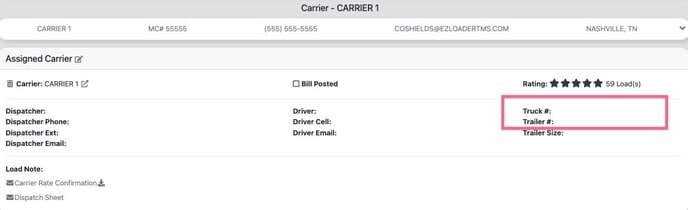
For a load to utilize ELD based tracking, you must enter the Truck and Trailer # into the load profile.
Status and Check Call Tracking Automation
When tracking of a load is active, the load status will automatically update when certain tracking events are received from Macropoint. See list of tracking events and status changes below:
- Arrived at Origin (MP) > changes status to > Onsite Pickup (EZL)
- Departed Origin (MP) > changes status to > Enroute (EZL)
- Arrived at Destination (MP) > changes status to > Onsite Delivery (EZL)
- Departed Destination (MP) > changes status to > Delivered (EZL)
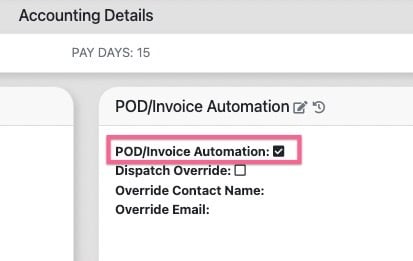
Note: Once a load is marked as delivered, EZ Loader will automatically send a POD/Invoice request to the dispatcher contact on a load profile if entered.
You can disable the POD/Invoice request automation within the accounting details section of each carrier profile.
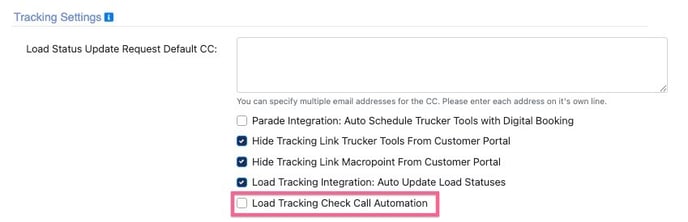
When tracking of a load is active, check calls will automatically update when certain tracking events are received from Macropoint. See list of tracking events and check call updates below
- Arrived at Origin (MP) > selects check call > Arrived (EZL)
- Departed Origin (MP) > selects check call > Loaded (EZL)
- Arrive at Stop (MP)> selects check call > Arrived (EZL)
- Departed Stop (MP)> selects check call > Departed (EZL)
- Arrived at Destination (MP) > selects check call > Arrived (EZL)
- Departed Destination (MP) > selects check call > Delivered (EZL)
Note: Tracking Integration Check Call Automation can be disabled by an Admin User on the settings page.