Task Queue
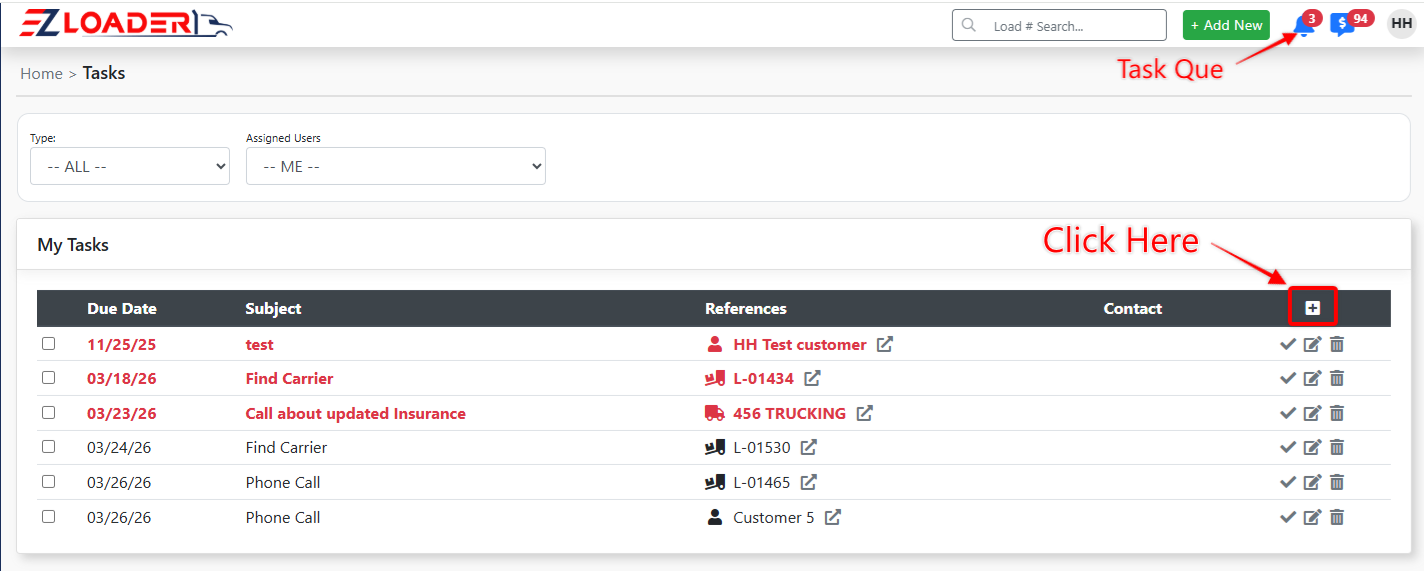
To view your full task list, including any overdue tasks, click the bell icon in the upper-right corner of your screen. (The number of overdue tasks will be listed on top of the bell icon)
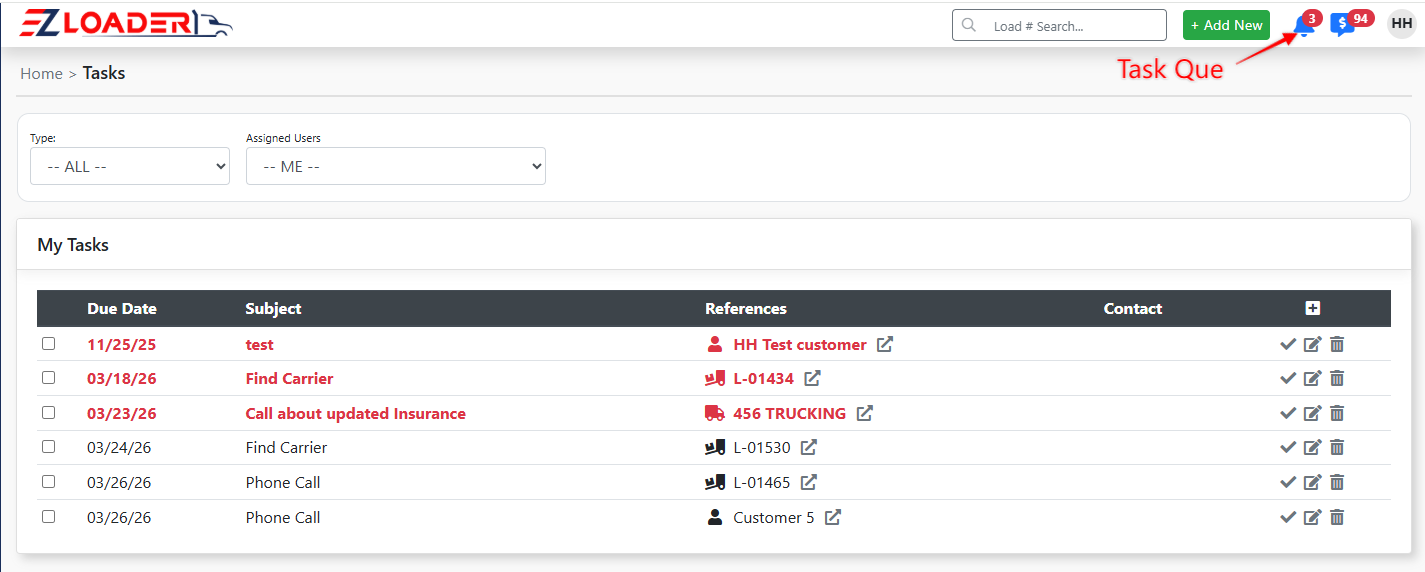
Not only will tasks show up here in your task queue, but users can also keep track of them directly in Reference for the task (Load profile, Carrier Profile, Customer Profile, Prospect Profile)
Adding a Task
There are three main ways to add a new task:
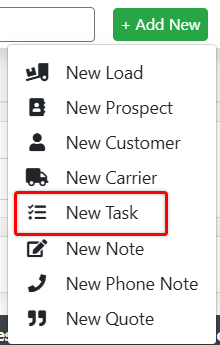
1. From the Command Center [+Add New], located at the top of your screen
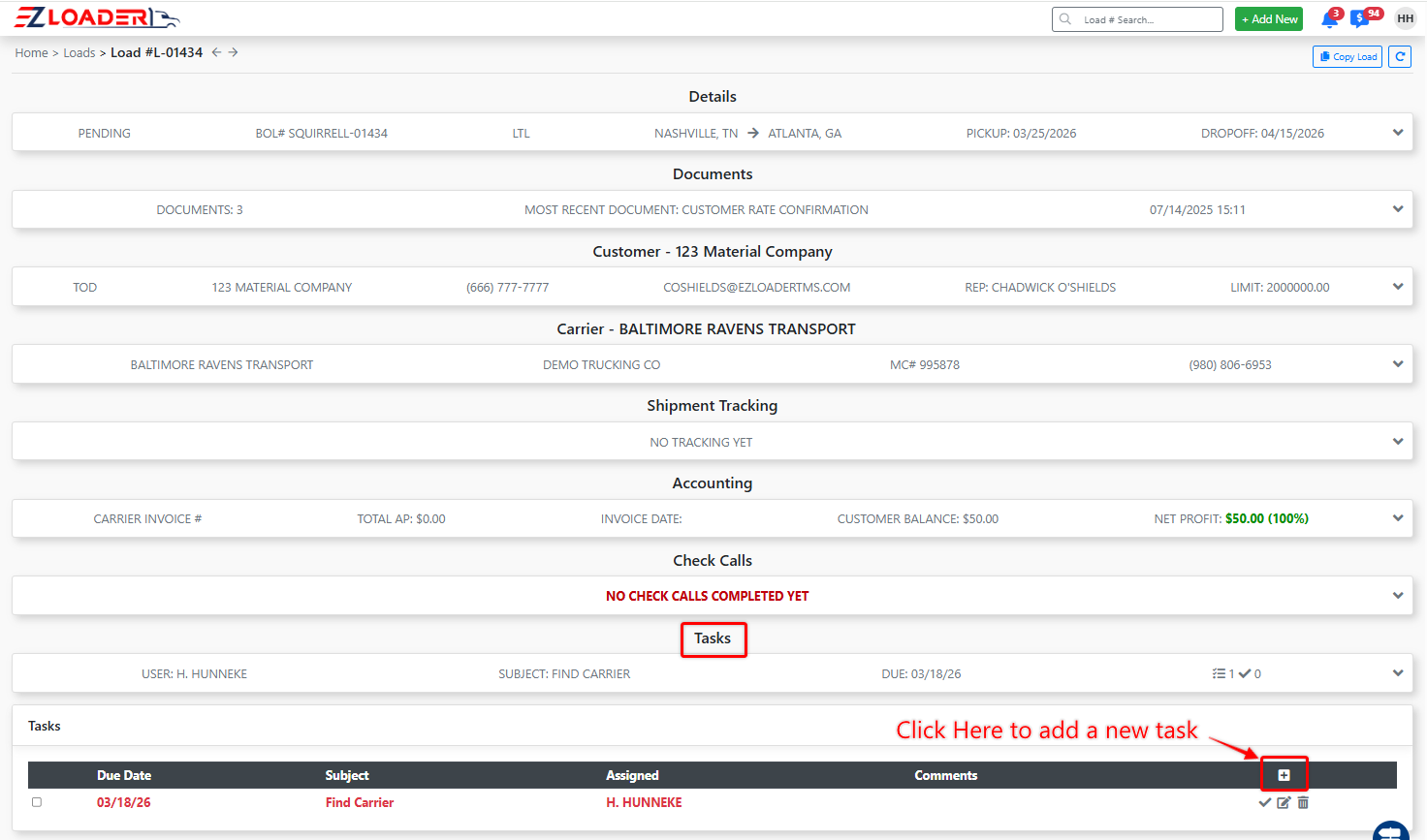
2. Adding a task directly into any profile page (such as a load profile) in the "Tasks" section
3. Within the "Task Queue"
New Task Wizard
No matter how you add the task into EZ Loader, you will always enter the "New Task Wizard" where you will enter the details of your task.
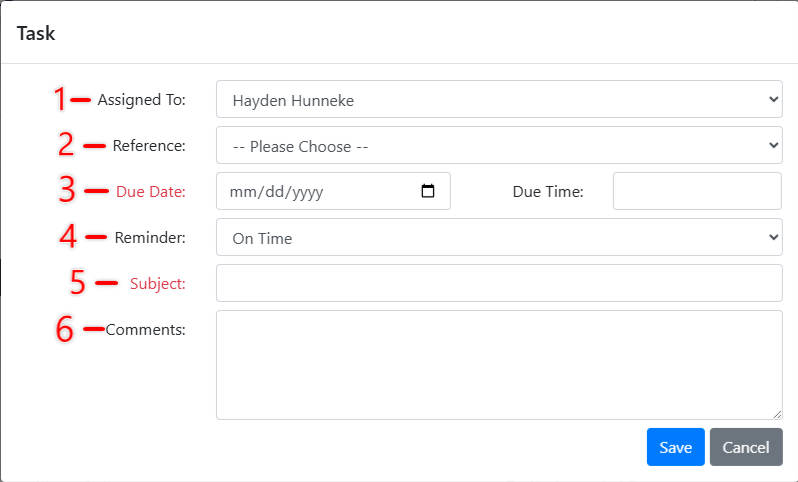
*Please note: Items in red text are required fields*
1. (Assigned to) Who is the task assigned to? Users can make tasks for other system users
2. (Reference) There are 4 references that you can associate with the task or create a generic task by leaving this field blank. Utilizing a reference will open up additional criteria in the "New Task Wizard".
- Carrier
- Customer
- Load
- Prospect
3. (Due Date/Due Time) The date and time the task becomes "Due". Once a task becomes "Due" it will appear in red text within the Task Queue, additionally there will be an overdue task icon in the top bar.
4. (Reminder) If you would like your task to appear in red in the task queue and receive an overdue task icon before the set due date & time, set a reminder window.
5. (Subject) Text entered here will appears in the details of the task and is listed under the "Subject" column in the task queue.
6. (Comments) Text entered here will appear in the details of the task when selected.
7. (Customer) When a reference type is selected (such as customer) you will enter a customer profile to associate with the task. The task will then appear in both the task queue and the customer profile that is associated with the task under the "task" section of the profile.
8. (Contact) When a reference type is selected (such as customer) you can associate a contact that is contained within that references profile with the task. In other words, if under customer "ABC" you had previously input a contact "Bob" within customer "ABC's" profile you would be able to enter "Bob" into the contact field of the task referenced to customer "ABC"
Adding a Task Through Note Reminders
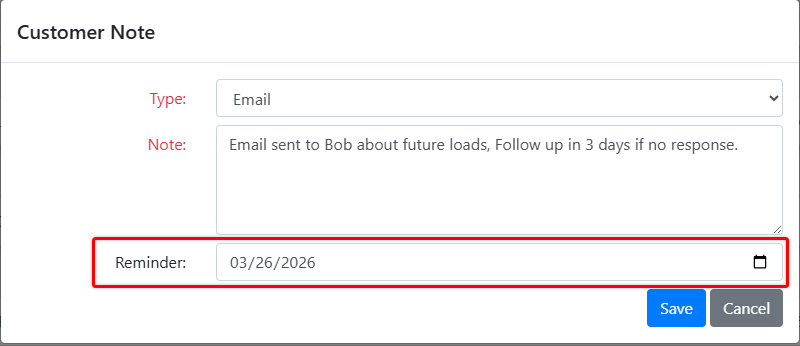
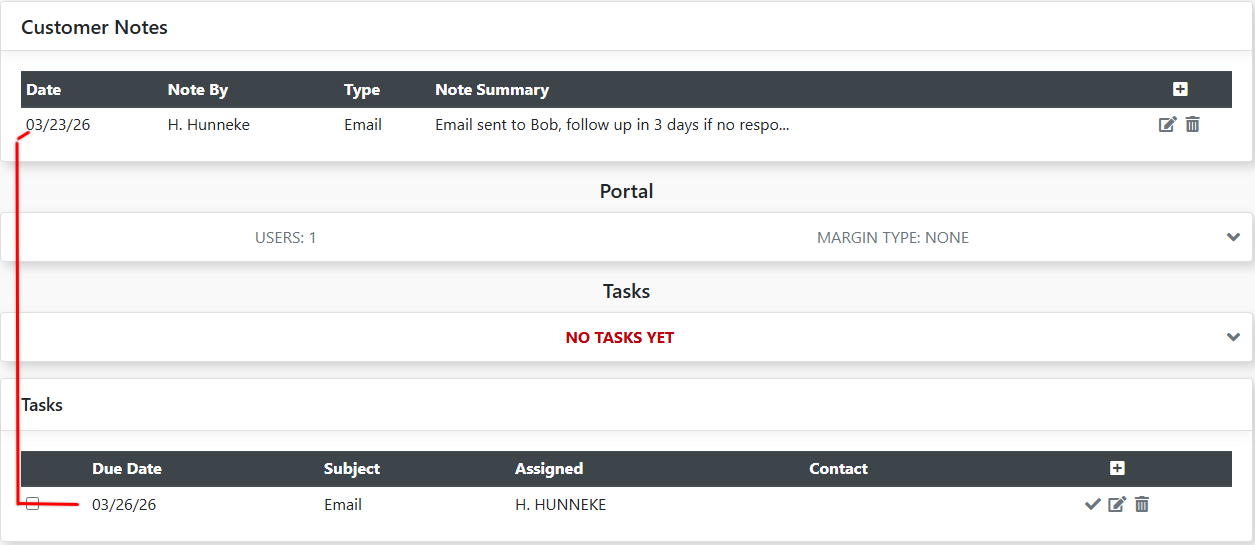
When you create a note in a profile, such as a customer profile, you have the option to set a reminder date. This will automatically trigger the creation of a task in that profile with a due date = the reminder date set during the note creation.