
Quick Start Guide
This article is intended to be a reference for those familiar with and have prior experience with a TMS software.
This article covers the bare essentials to get operating within EZ Loader
- Setting your digital Signature
- Navigating the User Interface
- Carrier Profile Requirements
- Customer Requirements
- Building a Load
*Please Note: Additional more detailed information can be found with our Knowledge Base and Training Academy/Video Hub* (want to make those links)
Setting your Digital Signature
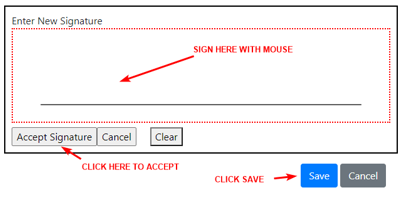
To send rate confirmations, carrier onboarding, or anything else in EZ Loader TMS you must first set up your Digital Signature.
CLICK YOUR INITIALS IN THE TOP RIGHT CORNER > SETTINGS > PROFILE

CLICK THE EDIT BUTTON ON THE “USER SIGNATURE SECTION”
Navigating the User Interface
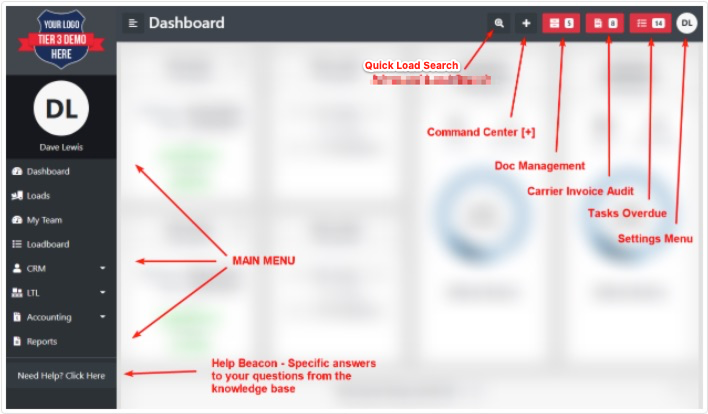
Command Center - The main Input Area of EZ Loader TMS. This is how you add anything into the system
- New Load - Opens New Load Wizard so you can build a load.
- New Prospect - Opens the form to build a new prospect.
- New Carrier - Jump starts the carrier onboarding process.
- New Task - allows you to add a task and attach it to anything.
- New Note - Allows you to add any type of note and attach it to a profile or load.
- New Phone Note - Log a call and attach it to a prospect, customer or carrier.
Carrier Profile Requirements
In Summary, when Insurance information is entered, a Carrier Agreement document type has been uploaded (they fill this out in Carrier Onboarding), and the Carrier profile is in Active status, the Carrier can be added to a Load.
Step 1: Enter Insurance Information
Go to the Carrier Profile > Details > Insurance & Certifications > Click Edit
Step 2: Confirm a "Carrier Agreement" document type has been uploaded into the documents section of the carrier profile.
Step 3: Change the status of the Carrier profile to "Active".
Go to Details > Carrier Info > Status > choose Active
Customer Requirements
There are only 2 requirements to build a load for a customer:
1.Customer Profile must be "Active"
Customer Profile > Details > Settings > Edit > Status "Active"
2. Customer must have a Credit Limit set
Customer Profile > Accounting > Credit and Terms