
Sources of Incoming Documents
There are three sources documents are input into the document management page.
%20%F0%9F%94%8A%202025-07-10%20at%203-21-02%20PM-jpg.jpeg?width=401&height=304&name=file-isrNIV84dz-png%20(406%C3%97309)%20%F0%9F%94%8A%202025-07-10%20at%203-21-02%20PM-jpg.jpeg)
- Internal User Uploaded Documents - These are files that are directly uploaded to the Document Management page by authorized internal users.
- Emailed Documents - Every EZ Loader account is assigned a distinct email address. This feature allows any PDF attachments received via email to be automatically uploaded to the Document Management page, streamlining the document input process.
- Document Submitted via the POD/Invoice Request Form.
1. Internal User Uploaded Documents
Users can easily upload documents to the Document Management page by either dragging and dropping files into the designated import box or by clicking the "Browse" button to select files from their local storage.

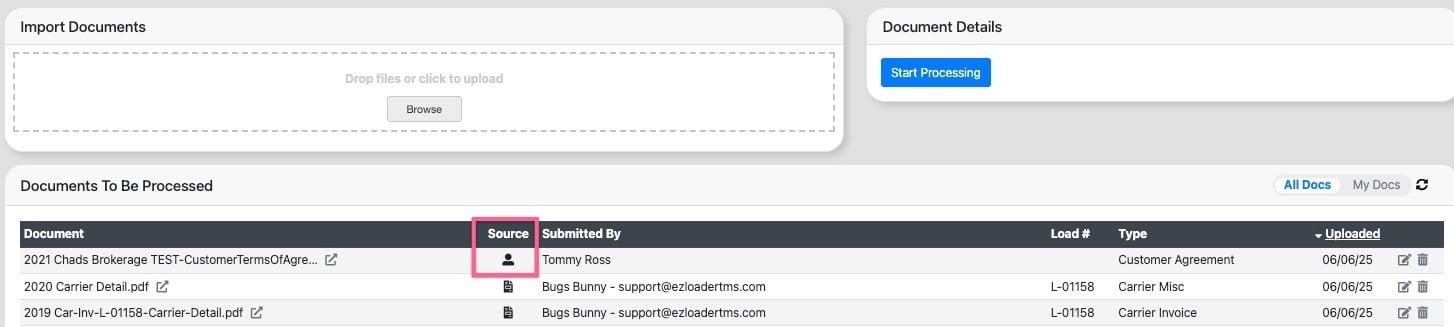
After the files have been uploaded successfully, they will be listed in the "Documents to Be Processed" section. In the source column, a "Person" icon will denote that the document was uploaded by an internal user.
2. Emailed Documents
The email aggregator feature automatically identifies and extracts attachments from incoming emails and uploads them to the document management page.
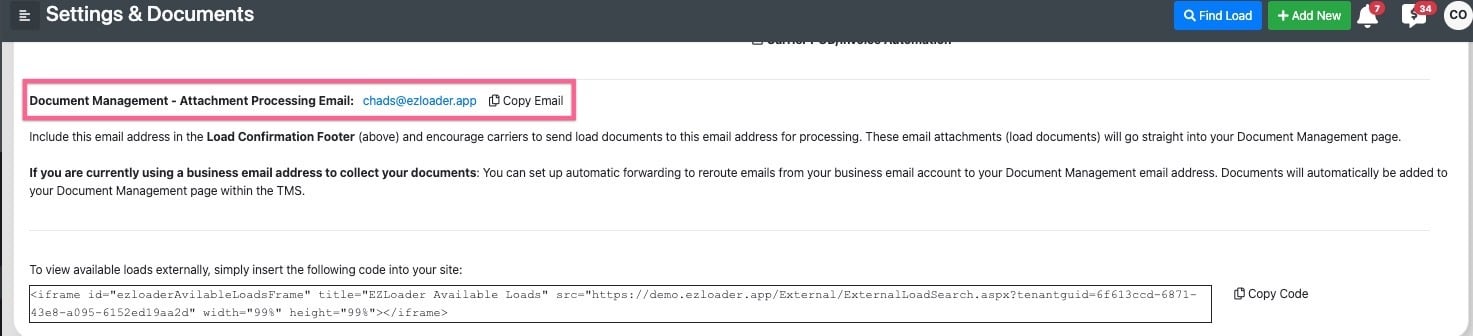
To find your company specific email address navigate to Settings > Settings & Documents > "Document Management - Attachment Processing Email".
Upon receiving an email, the email aggregator automatically extracts any attachments and uploads them to the "Documents To Be Processed" section of the Document Management page. Additionally, the aggregator captures specific details from the email, which can be accessed by clicking the email icon in the source column. It also analyzes the subject line and names of the documents to help automatically assign the correct load number and document type.
%202025-07-11%20at%2011-09-54%20AM-jpg.jpeg?width=1318&height=154&name=file-uRMTaUK4bF-jpg%20(1330%C3%97171)%202025-07-11%20at%2011-09-54%20AM-jpg.jpeg)
3. POD/Invoice Request
Documents submitted via the POD/Invoice request web form are automatically directed to the Document Management page.
%202025-07-11%20at%2011-19-20%20AM-jpg.jpeg?width=1432&height=205&name=file-IkmPJO9F3C-jpg%20(1486%C3%97232)%202025-07-11%20at%2011-19-20%20AM-jpg.jpeg)
Navigating within the Document Management page
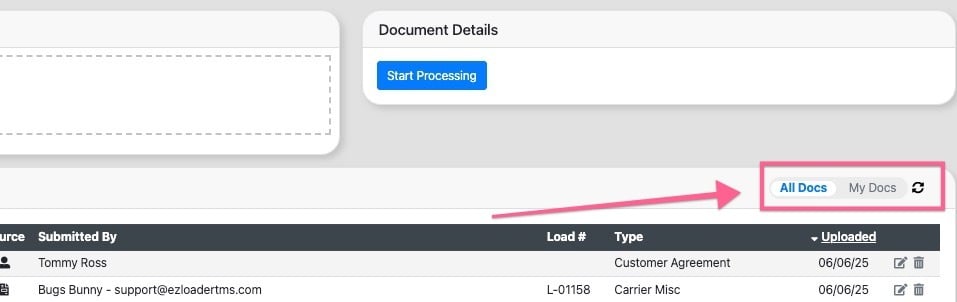
Switching between "All Docs" and "My Docs" enables you to access either company-wide documents or only those specific to you. The "My Docs" section features documents that you have uploaded directly, as well as any unprocessed documents linked to a load profile in which you are designated as a Sales Rep, Assigned Rep, or Dispatcher.
Please Note: Certain user permissions such as "Broker-Agent" may affect which documents appear in the different views.
Processing Documents
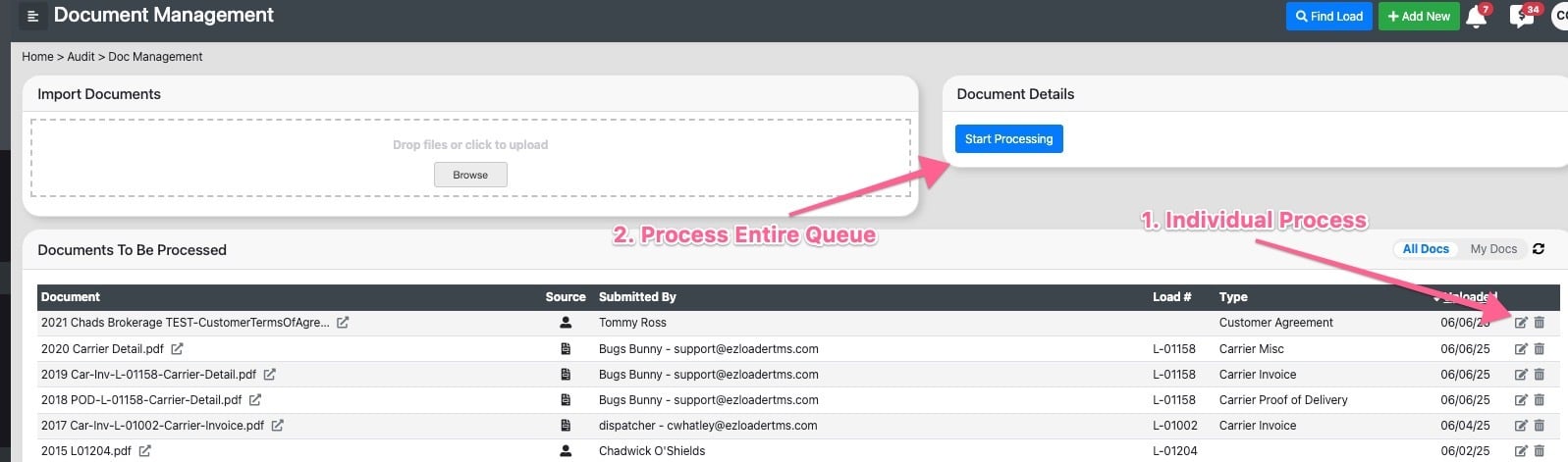
- Individually process a specific document
- Process all documents in the queue
- Process directly from the load page
When an unprocessed document has a load number associated with it (This can happen automatically if the document was received through a POD/Invoice request OR if the system was able to predict the Load number based on the file name or email contents) the document will appear in both the "Documents To Be Processed" section of the Document Management page AND the "Documents To Be Processed" section of the applicable load page.
You may select the edit icon in either the Document Management page OR the Load profile to process the document. Once the document is processed, it will move into the Documents section of the load profile.
%202025-07-14%20at%203-11-12%20PM-jpg.jpeg?width=1120&height=573&name=file-PF8ECwadcA-png%20(1132%C3%97592)%202025-07-14%20at%203-11-12%20PM-jpg.jpeg)
Locking and Unlocking Documents
When a document is being processed by another user, it becomes "Locked" to prevent simultaneous edits. A lock icon will appear next to the document, and the document text will be grayed out to indicate its status. By hovering over the lock icon, you can view the name of the user currently working on that document.
%202025-07-14%20at%203-13-58%20PM-jpg.jpeg?width=1183&height=85&name=file-OPQonYwTkp-jpg%20(1192%C3%97103)%202025-07-14%20at%203-13-58%20PM-jpg.jpeg)
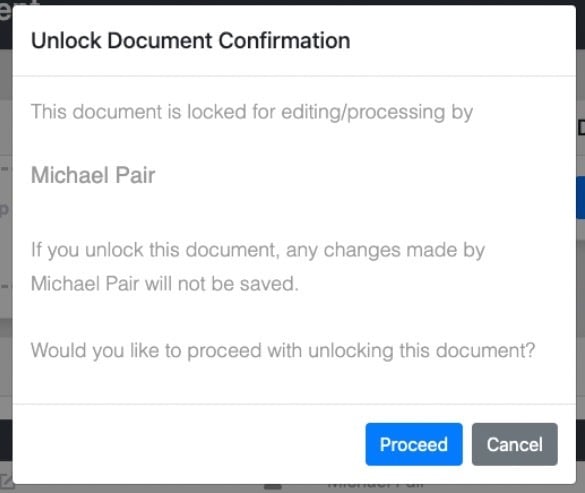
Note: If you need to access a document currently being edited by another user and it is locked, you have the option to click the lock icon to unlock the document and gain access to it for your own edits.
You will receive a prompt asking if you wish to continue. If you proceed, the other user will be removed from the document they are currently editing, and any unsaved changes will be lost. You will then take over the processing of that document.
Splitting Documents
When processing a multiple page document, you have the ability to "Split" the document into individual files/documents.
Please view a step by step video tutorial below: