
There are only 2 requirements to build a load for a customer:
- Customer Profile status must be set to "Customer"
- Customer must have a Credit Limit set
We suggest a few more items to set up when adding a new Customer and making them active:
- Set up Assigned & Default Sales Reps
- Set up billing information and requirements
Setting Up & Activating the Customer Profile
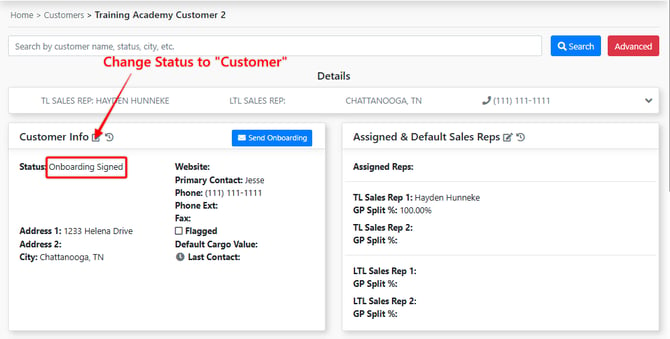
Ensure they are in "Customer" status, navigate to the Customer Profile > Details > Customer Info > Edit Change Status to "Customer"
Establishing Customer Credit
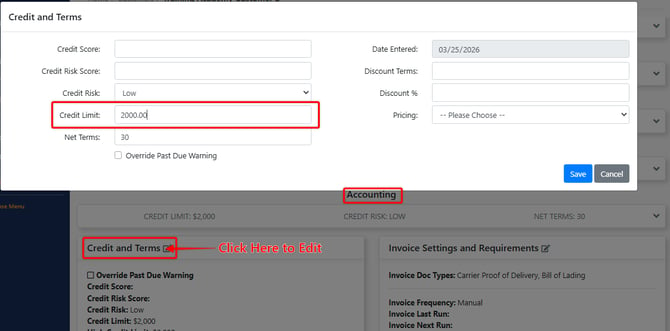
In EZ TMS, a customer must have a credit limit set before you can build a load for them. Your team defines the customer’s credit limit, and EZ TMS automatically tracks how much of that limit is available based on the customer’s active loads. When a customer invoice is paid, the payment amount is added back to their available credit.
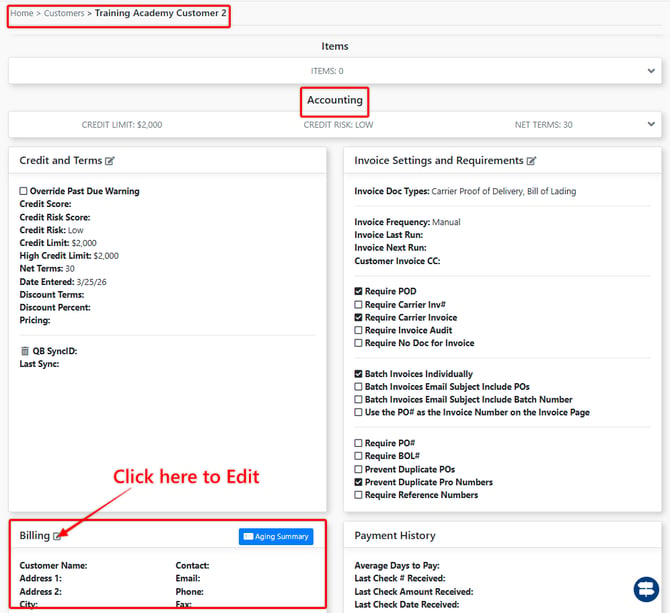
To establish credit for a customer, navigate their Customer Profile > Accounting > Credit and Terms, then add the appropriate credit amount to the customer account.
**IMPORTANT NOTE - Only admins and Users with the "Credit Limit" permission can adjust a customer's credit.
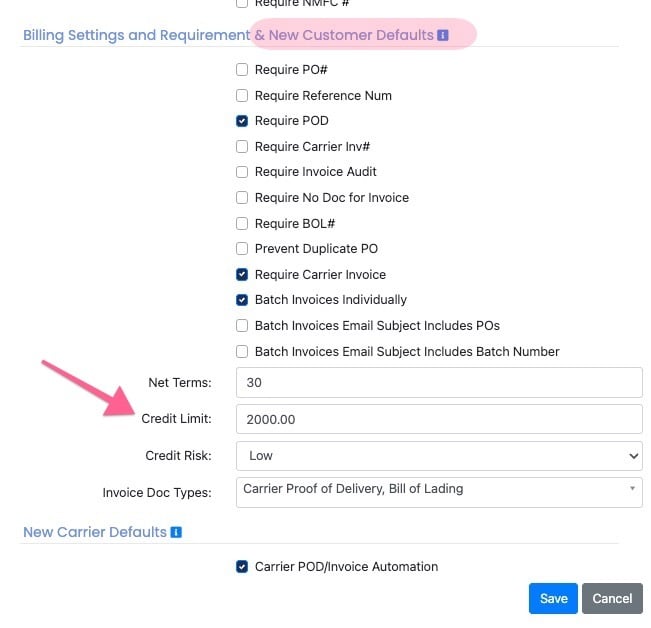
*Note: A New Customer Default Credit Limit can be set within your EZ TMS account. Whenever a new customer is added they will automatically receive the default credit limit. An admin level user can adjust this from the settings and documents page.
Assigning Users & Setting Default Sales Rep + Default GP Split %
Sales Reps
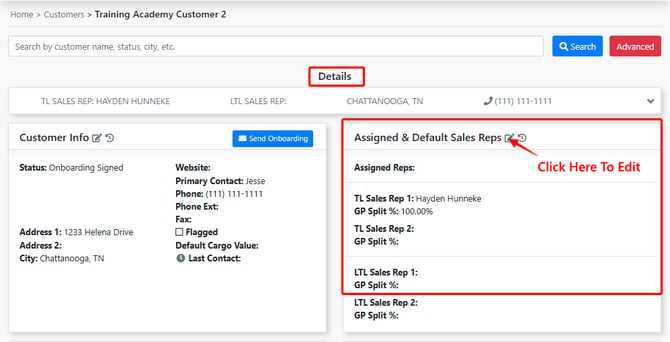
Within the customer profile, set 1-2 Default Sales Reps. The Sales Rep(s) will be automatically assigned to any load created for that customer, but you can override the default selections during the load-building process.
You must apply a default GP Split % that adds up to 100%. This split controls how the Gross Profit is distributed to each Sales Rep and is automatically applied to every load created for that customer.
-
Assigned Reps
Unlike Sales Reps, Assigned Reps are not required on a Customer Profile
Setting an Assigned Rep on a customer profile associates or tags that user to every load created for that customer. Assigned Reps are not allocated any profit on sales reports, making this ideal for Ops Reps who help monitor loads but do not receive commission.
Set up billing information and requirements
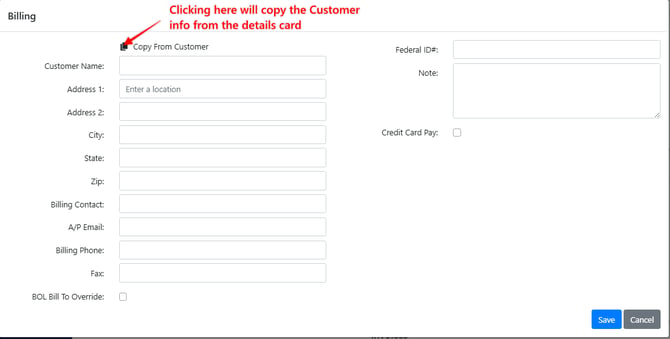
To enter customer billing information navigate to the Customer Profile > Accounting > Billing
Requirements
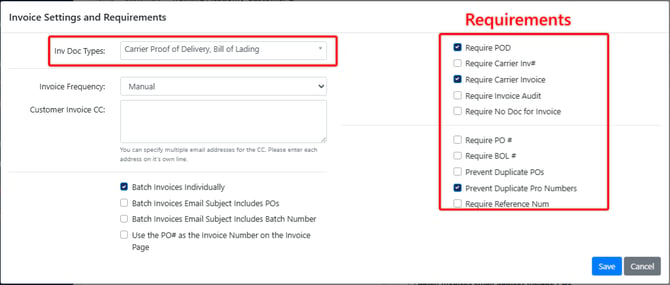
Navigating to a Customer Profile > Accounting > Invoice Settings and Requirements, you can adjust two important settings:
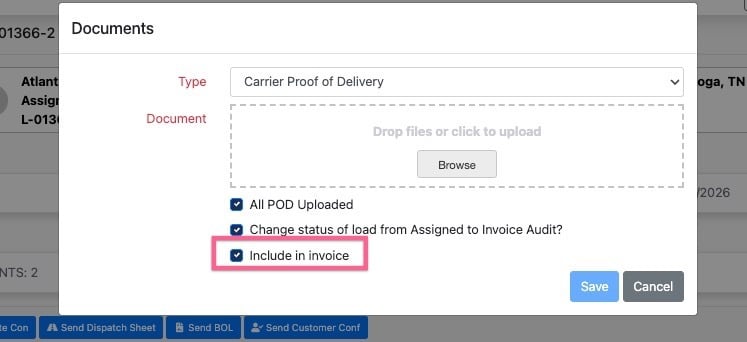
- Invoice Doc Types - This drop down controls the default value of the "Include in Invoice" checkbox when a document is uploaded to a load. For example if you select POD from the drop down, anytime a POD document is uploaded into a load for that customer the "include in invoice" checkbox will be selected by default.
- Invoice Requirements - These requirements control the alerts you receive during the Invoice Audit process. For example, if you select “Require Carrier Inv #” and a load is missing a carrier invoice number in the load profile, you’ll be notified that this requirement is missing during the Invoice Audit.
Click Here For more info on Customer Invoice Settings and Requirements