
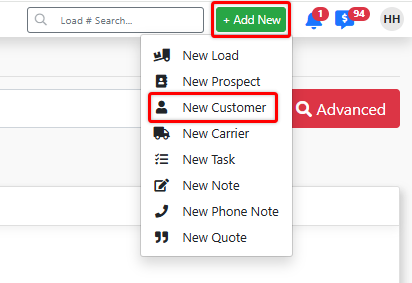
To create a new customer profile, click the [+ Add New] button in the top right of your screen and select "New Customer". This will open the "New Customer Wizard".
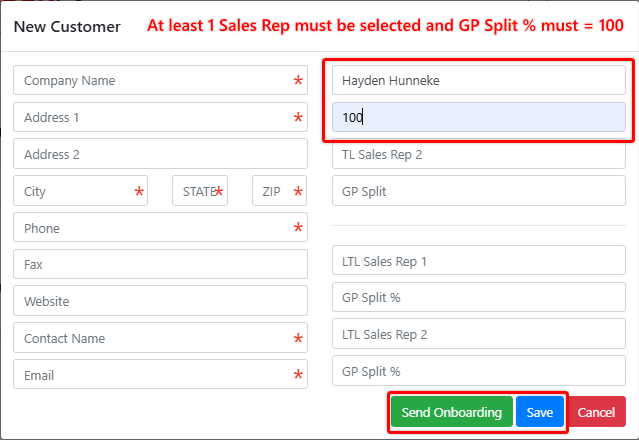
Fill in all applicable information and select from two options - [Send Onboarding] or [Save].
[Save] will automatically put the Customer profile in "Customer" status and take you directly into the profile.
[Send Onboarding] will automatically put the Customer profile in "Onboarding Sent" and send a Customer Onboarding e-mail to the recipient entered in the Email box below.
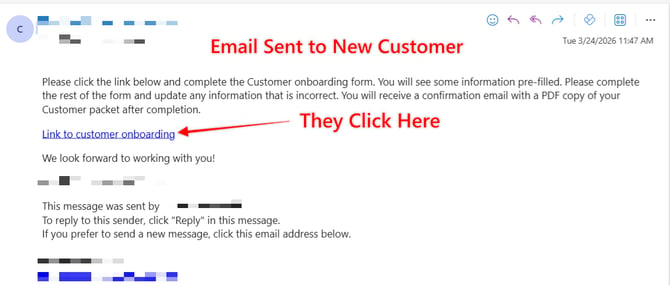
Option 1: [Send Onboarding] - Digital Customer Onboarding
If you choose the [Send Onboarding] button when building a customer, an email will be sent to the new customer containing a link directing them to the customer onboarding web form. Additionally the customer profile will be created and set with a status of "onboarding sent"
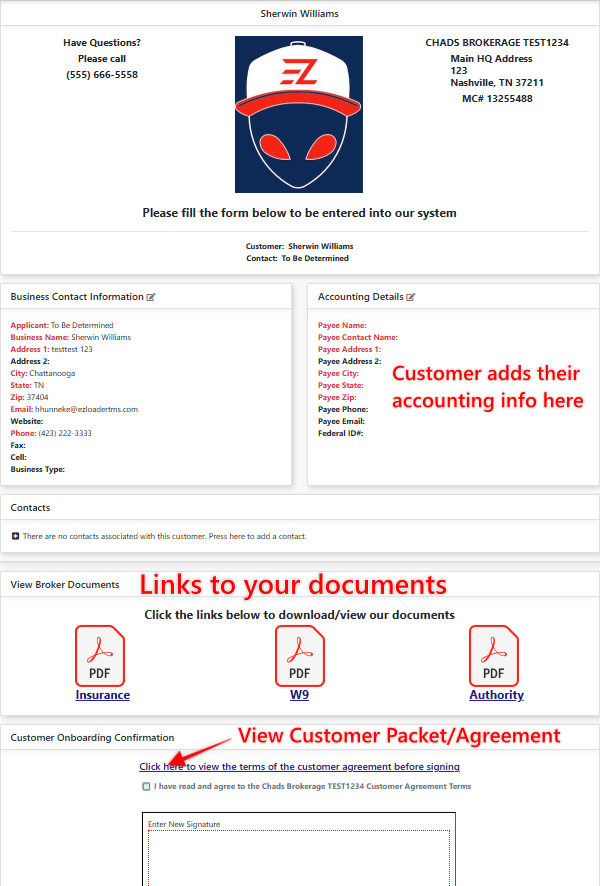
The Customer Onboarding link is where the customer can:
- Review/edit their companies information
- View broker documents such as W9 and Authority
- View and sign your customer agreement.
Once the Customer Onboarding form is complete, A copy of this document will be saved in their customer profile and a copy will be sent to both parties for record keeping. Additionally the status of the customer profile will move from "Onboarding Sent" to "Onboarding Signed"
Option 2: [Save]
Selecting [Save] will automatically put the Customer profile in "Customer" status and take you directly into the profile.
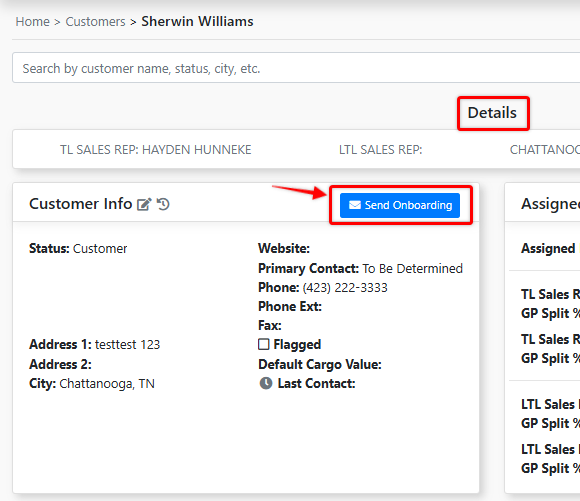
To later send a Digital Customer Onboarding, you must first go into the Customer Profile > Details > Click [Send Onboarding]
Customer Requirements to Build a Load
There are only 2 requirements to build a load for a customer:
1.Customer Profile must have status of "Customer"
Customer Profile > Details > Settings > Edit > Status "Customer"
2. Customer must have a Credit Limit set
Customer Profile > Accounting > Credit and Terms
We suggest a few more items to set up when adding a new Customer and making them active (See full Article Link Below):
- Set up Assigned & Default Sales Reps
- Set up billing information and requirements
Click Here For Customer Requirements
Customer Statuses
- Onboarding Sent - The Customer is in process of being set up and a Customer Onboarding email has been sent, but not completed. A load cannot be created for a customer in this status.
- Onboarding Signed - The Customer is in process of being set up and has signed their Customer Agreement. The Customer profile must now be toggled to "Customer". A load cannot be created for a customer in this status.
- Customer - The Customer profile is active and a load can be added to the profile.
- Inactive - The Customer profile is inactive and loads are unable to be booked.