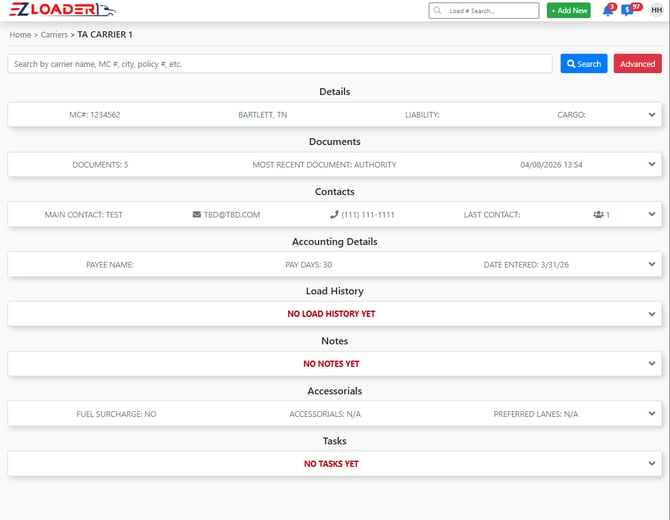
Details
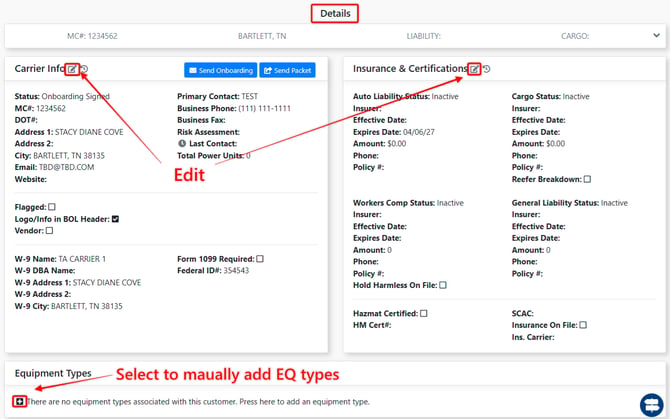
This section contains the Carrier Info, Status, and Insurance & Certifications. This is also where the Equipment Types are saved each time a Carrier runs a load.
Documents
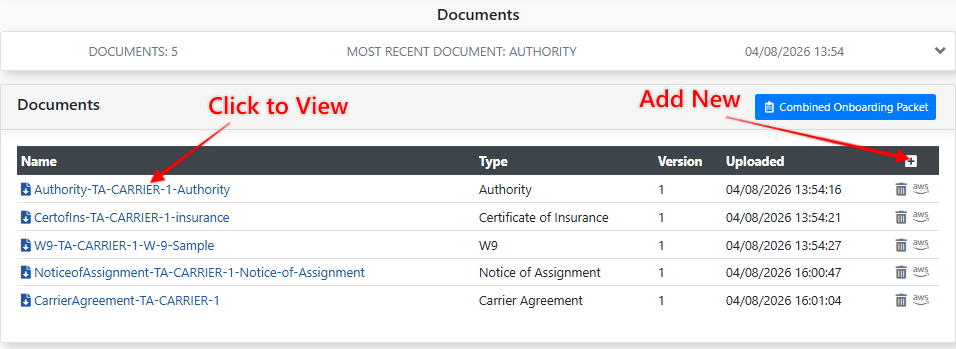
Documents can be uploaded by clicking Add [+] , selecting the document type, and choosing the file to upload.
Documents can be downloaded and viewed by clicking on the name of the document. Documents can be deleted by selecting the trashcan icon.
Contacts
Enter any contacts associated with the carrier in this section. Contacts saved in the carrier profile will automatically populate in the New Load Wizard when you add a dispatcher or driver to a load.
Add a new contact by clicking the [+] button > filling in the applicable information > select [Save].
Accounting Details
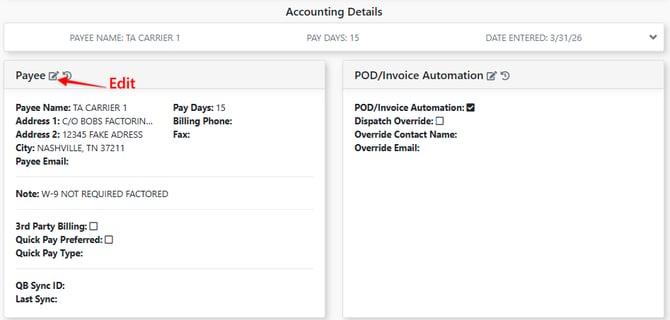
The Accounting Details section houses the carrier’s payee information. Click the edit button to add or update Payee information.
This section also includes POD/Invoice Automation settings. When POD/Invoice Automation is enabled, users are prompted to send a POD/Invoice request form as soon as the load status is updated to Delivered.
Load History
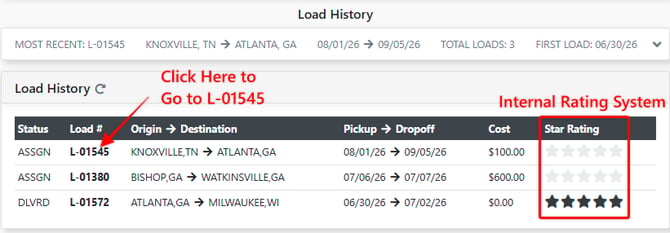
A listing of the carrier’s load history can be found under the Load History. Clicking on a Load # will take you to the load page.
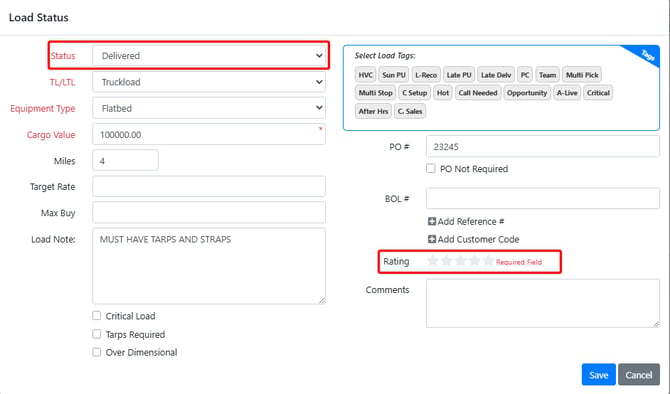
The star rating is an Internal Rating System and is set by a user in the load page when the load status is set to Delivered.
Notes
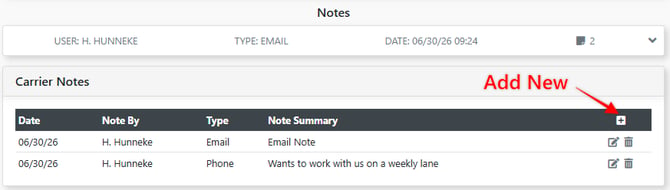
Use this section to record Phone Call or Email notes for the carrier. To add a note, click the [+] button in the Notes section.
Accessorials
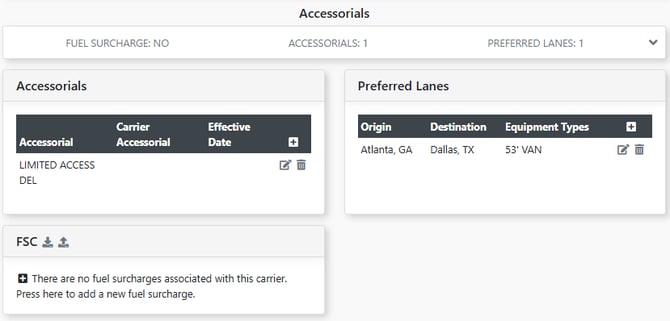
Use the Accessorials section to configure any recurring accessorial charges or Fuel surcharges for the carrier. You can also add the lanes they run and define fuel surcharges that will be automatically applied to all of their loads.
You can also add the carrier’s preferred lanes in this section.
Tasks
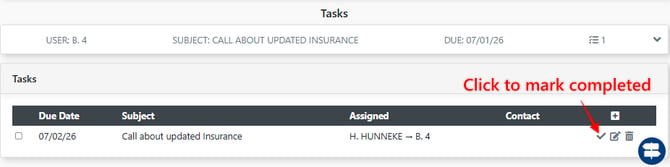
The Tasks section allows you to create action items and link them to the carrier. Use tasks to remind yourself (or assign a task for another User) to complete activities such as check calls on loads or requesting updated insurance.
Click the checkmark to mark a task as complete and remove it from your task list.