
To add a new carrier into the your account, click the [+ Add New] Command Center and select New Carrier.
Fill in the applicable information and select either [Save] or [Send Onboarding].

Option 1 - [Send Onboarding]
Selecting the "Send Onboarding" button will trigger an email to the carrier which includes a link to the Digital Carrier Onboarding Webform.
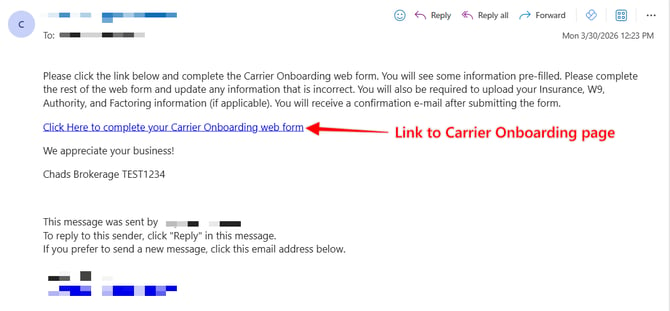
- When the Carrier receives the onboarding email (displayed above), they will click the link to be taken into the Carrier Onboarding Web form. Within the web form the Carrier will complete their onboarding information, upload Carrier documents and input Billing information.
- After the [Send Onboarding] option is selected, the Carrier's profile will be created within your account and the Carrier's status will be automatically set to "Onboarding Sent"
- After the Carrier completes the Carrier Onboarding web form, all information from the web form and any uploaded documents will be added into the Carrier's profile within EZ Loader.
- At this point the status of the Carrier's profile will automatically change from "Onboarding Sent" to "Onboarding Signed". The user that sent the Carrier Onboarding e-mail will also receive a notification email alerting the user to complete the Carrier Onboarding process. Additionally, the carrier will receive a notification email that includes a signed copy of their Carrier Onboarding web form via PDF.

- The final step to complete the Carrier Onboarding process:
- Review the Carrier's Payee information and Documents (this is the information the Carrier would have entered into the web form) for accuracy.
- Enter the insurance information into the Details > Insurance & Certifications section of the profile. Note: this information will automatically be entered if you have a carrier monitoring integration such as Highway active.
- Change the status of the Carrier from " Onboarding Signed" to "Active" (To change the carriers status, go to Details > Carrier Info, within the Carrier's profile
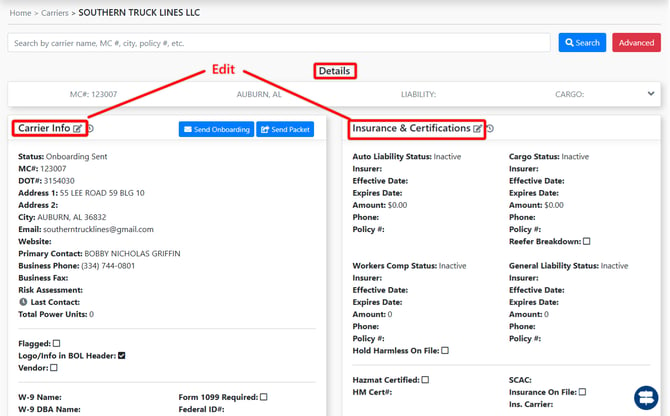
Click Here For More on Carrier Assignment Requirements
Option 2 - [SAVE]
Selecting [Save] while building a Carrier will create the Carrier Profile without sending the Carrier Onboarding e-mail to the Carrier. The carrier status will be set to "Active".
At this point you can either go in and manually add the required documents and set the necessary profile requirements (Click Here Carrier Assignment Requirements) OR you can trigger the Digital Carrier Onboarding Email.
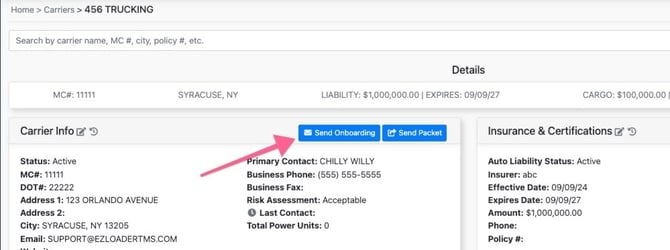
To send or trigger the Digital Carrier Onboarding Email campaign, expand the details section and select the "Send Onboarding" button.
Carrier Profile Statuses
There are 9 statuses in which a carrier profile can be assigned. Below are the statuses and a description of each.
Active - This is an active carrier that can be assigned to a Load as long as the Carrier's Insurance information has been entered into the Carrier profile > Details > Insurance & Certifications card.
Inactive - This carrier cannot be used and cannot be put on a load until moved back to Active status
Dormant - Another option for organizing your carriers. A carrier in dormant status can not be assigned to a load.
Do not use - Another option for organizing your carriers. A carrier in Do Not Use status can not be assigned to a load.
Do Not Dispatch (3rd Party) - This status applies to 3rd party monitoring Integrations such as Highway. Certain monitoring services have their own "Do not use" type statuses directly in their platform. For supported monitoring integrations we will move a carrier to "Do Not Dispatch (3rd Party)" if we receive their "Do Not Use" status update through the API.
Onboarding Sent - This carrier has been sent a Carrier Onboarding e-mail containing a link to their Onboarding webform, but has not signed yet.
Onboarding Signed - This carrier has completed and e-signed the Carrier Onboarding webform. The Carrier profile is ready to be reviewed.
Onboarding Failed - The Carrier failed to complete the onboarding webform.
Onboarded Needs Review - Another option for organizing your carriers. A carrier in dormant status can not be assigned to a load.